If your business is GST-registered in Singapore, you have to file a GST F5 return for every accounting period. Many MoneyWorks users still copy the figures from their GST report and type them into myTax Portal by hand. That takes time, and one wrong digit can mean filing an amended return later.
MoneyWorks has a built-in feature called IRAS Connect that sends your GST F5 return straight to IRAS. You don’t need to retype anything.
This step-by-step tutorial shows you how to file your MoneyWorks GST F5 return from start to finish, using the same steps we show our clients.
Watch the Video: How to e-File Your GST F5 Return in MoneyWorks
Prefer to watch? The video shows the full filing process in about a minute. The written steps below explain each screen in detail.
What You Will Learn
By the end of this tutorial, you will know:
- What IRAS Connect is and which GST forms it can file
- What to prepare before you start filing
- How to submit your GST F5 return from MoneyWorks to IRAS
- How to confirm IRAS has received your return
- How to fix the most common filing problems
In This Tutorial
- What is IRAS Connect in MoneyWorks?
- When to use F5, F7 or F8
- Before you start
- How to file your GST F5 return in MoneyWorks
- What happens after you submit
- Common problems and solutions
- Frequently asked questions
What Is IRAS Connect in MoneyWorks?
IRAS Connect is a MoneyWorks command that submits your GST return directly to IRAS. It is part of IRAS’s Seamless Filing From Software (#SFFS) programme. Your return is filled in automatically from your last finalised GST report in MoneyWorks, so you never retype the figures into myTax Portal.
When to Use GST F5, F7 or F8
IRAS Connect can file three GST forms:
| Form | When to use it |
|---|---|
| F5 | Your normal GST return for each accounting period. Most users only ever need this. |
| F7 | To correct mistakes in a GST F5 return you already submitted. |
| F8 | Your final GST return, after your GST registration has been cancelled. |
This tutorial covers the F5. The steps for F7 and F8 are almost the same. You just choose a different form in Step 2.
Before You Start
Make sure that:
- Your GST report is finalised in MoneyWorks. IRAS Connect uses your last finalised GST report. If you haven’t finalised the report for the period you’re filing, you’ll submit the wrong period.
- You have Singpass with the right Corppass role. To submit, your Corppass admin must assign you the GST (Filing and Applications) e-Service with the Approver role. Users with only the Preparer role can’t submit. See IRAS’s overview of the GST e-Filing process.
- Your figures are checked. Reconcile your bank accounts and review your GST report before you finalise it. Once a return is submitted, you can only correct it with an F7.
- Your contact details are ready. The declaration asks for your designation, contact person, phone number and email.
Important: Your GST return and payment are both due one month after the end of the accounting period. IRAS charges a $200 penalty as soon as a return is late, plus another $200 for every completed month it stays outstanding (IRAS). You must file a nil return even if you had no transactions.
How to File Your GST F5 Return in MoneyWorks
Follow these eight steps. The whole process takes about five minutes once your GST report is finalised.
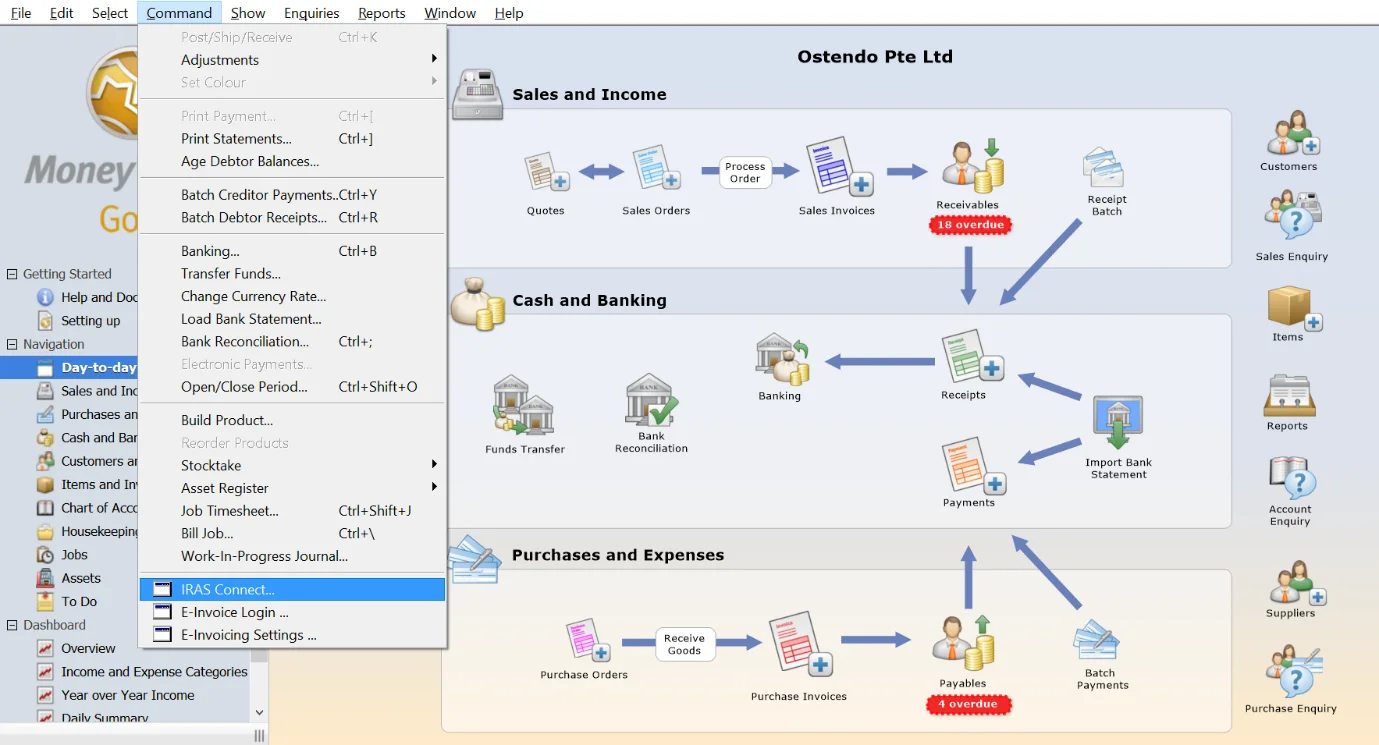
Step 1: Open IRAS Connect
In MoneyWorks, go to Command > IRAS Connect.
Step 2: Choose the Form to File
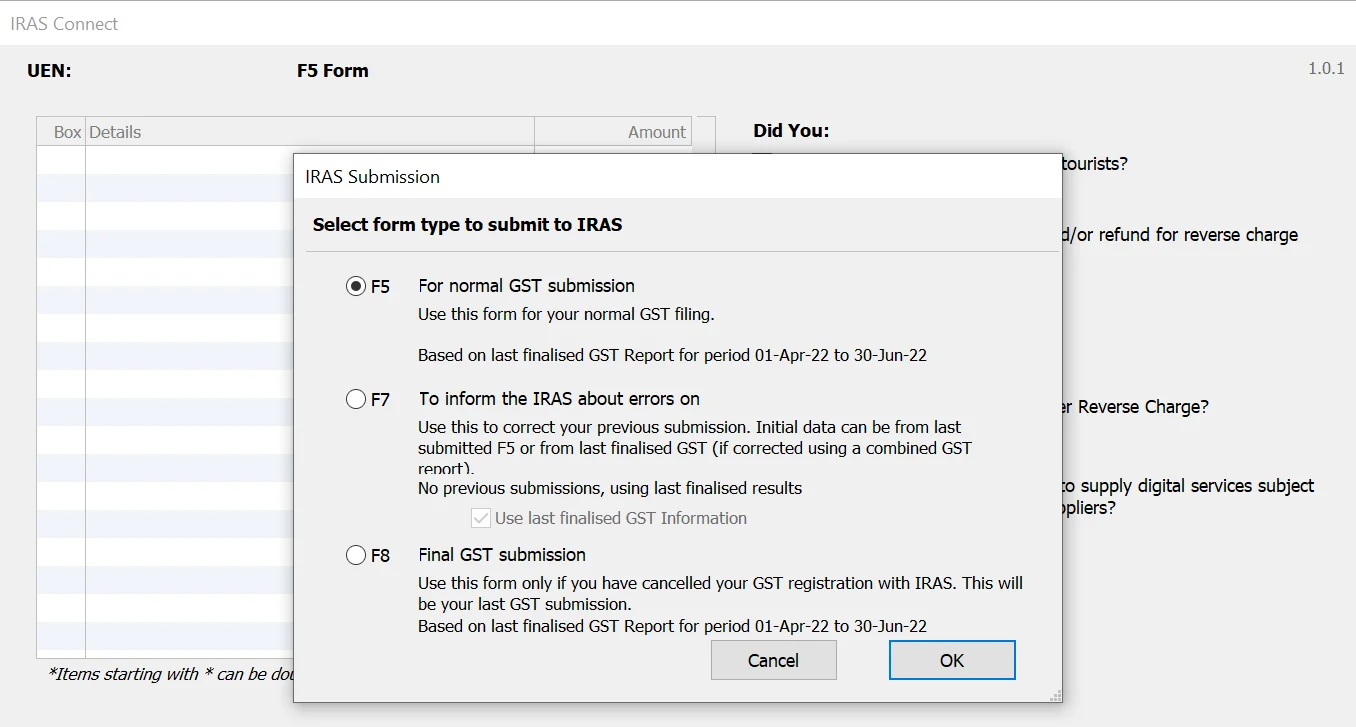
The IRAS Submission window asks you to Select form type to submit to IRAS.
- Select F5 for your normal GST filing.
- Check the line under F5. It shows the period of your last finalised GST report, for example 01-Apr-22 to 30-Jun-22. Make sure it is the period you want to file.
- Click OK.
Note: Choose F7 only to correct a return you already filed, and F8 only if your GST registration has been cancelled and this is your final return.
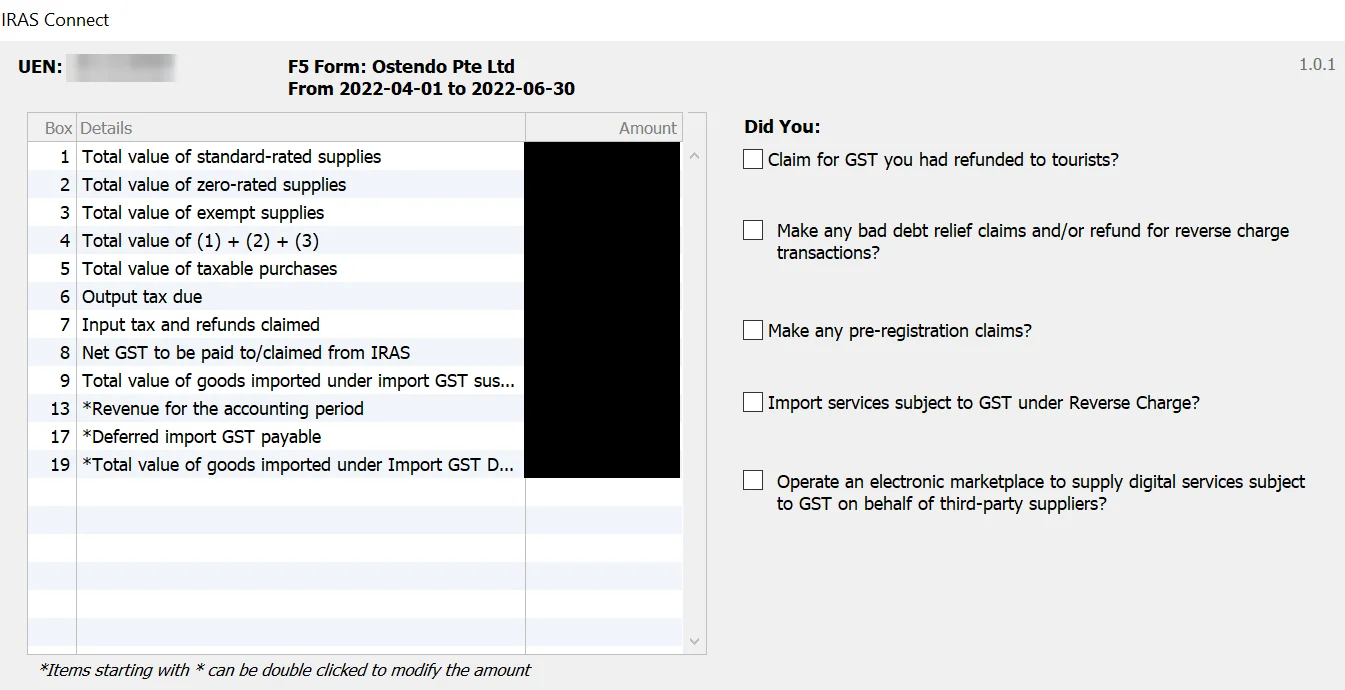
Step 3: Review the GST F5 Form
The IRAS Connect window opens with your GST F5 summary. Your UEN, company name and accounting period appear at the top, and the F5 boxes appear below. Check each box against your finalised GST report:
| Box | What it shows |
|---|---|
| 1, 2, 3 | Standard-rated, zero-rated and exempt supplies |
| 4 | Total of boxes 1, 2 and 3 |
| 5 | Taxable purchases |
| 6 | Output tax due |
| 7 | Input tax and refunds claimed |
| 8 | Net GST to pay to, or claim from, IRAS |
| 9 | Goods imported under import GST suspension schemes |
| 13 | Revenue for the accounting period |
| 17 | Deferred import GST payable |
| 19 | Goods imported under the Import GST Deferment Scheme |
On the right, tick any Did You questions that apply. For example, tick Make any bad debt relief claims and/or refund for reverse charge transactions? if you made such claims this period.
Tip: Boxes marked with an asterisk (*) can be edited. Double-click the amount to change it. All other boxes come straight from your GST report.
Important: Check every number carefully before you continue. This is the last point where you can change a figure without filing an F7 later.
Step 4: Click Submit
When the form is correct, click Submit. MoneyWorks checks the return for inconsistencies. If it finds none, the IRAS Declaration window opens.
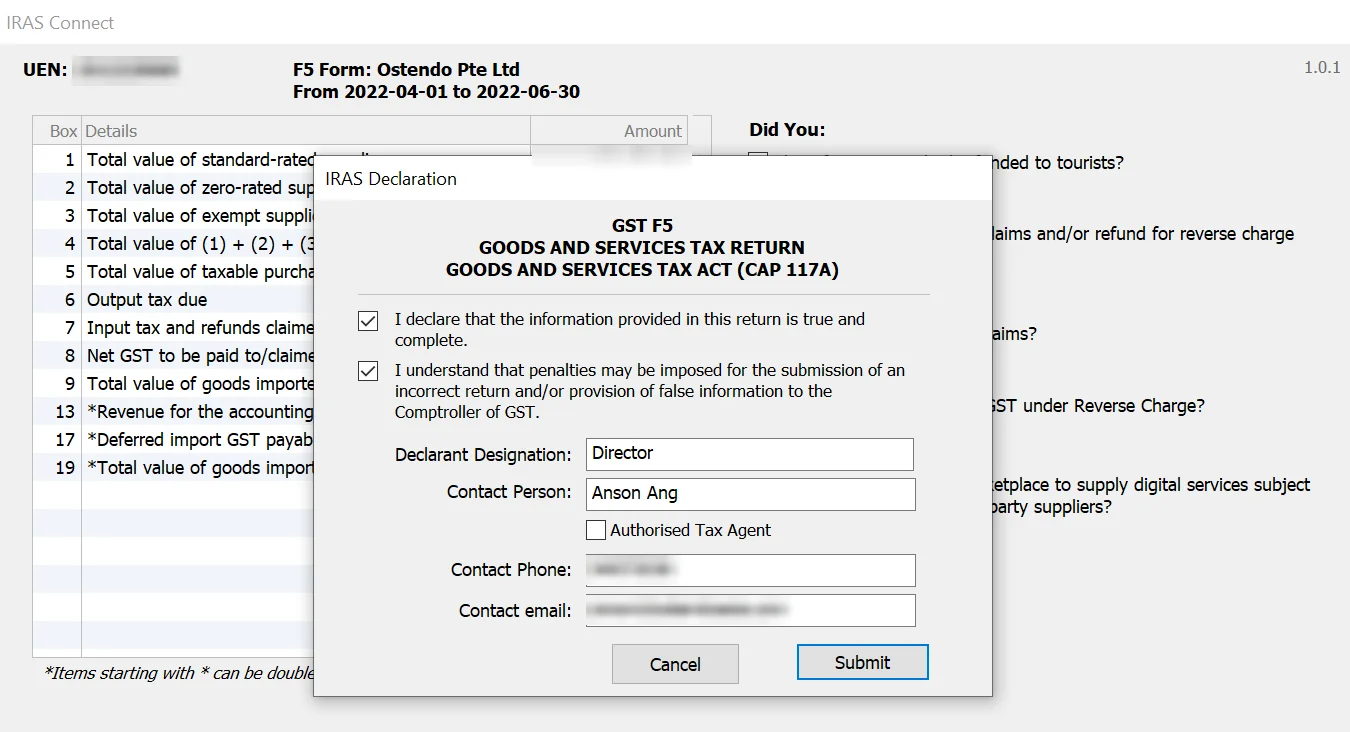
Step 5: Complete the Declaration
- Tick both declaration boxes. The first confirms the information is true and complete. The second confirms you understand that penalties may apply for an incorrect return.
- Fill in Declarant Designation (for example, Director), Contact Person, Contact Phone and Contact email.
- Tick Authorised Tax Agent only if you are a tax agent filing for a client.
- Click Submit.
Step 6: Log In with Singpass
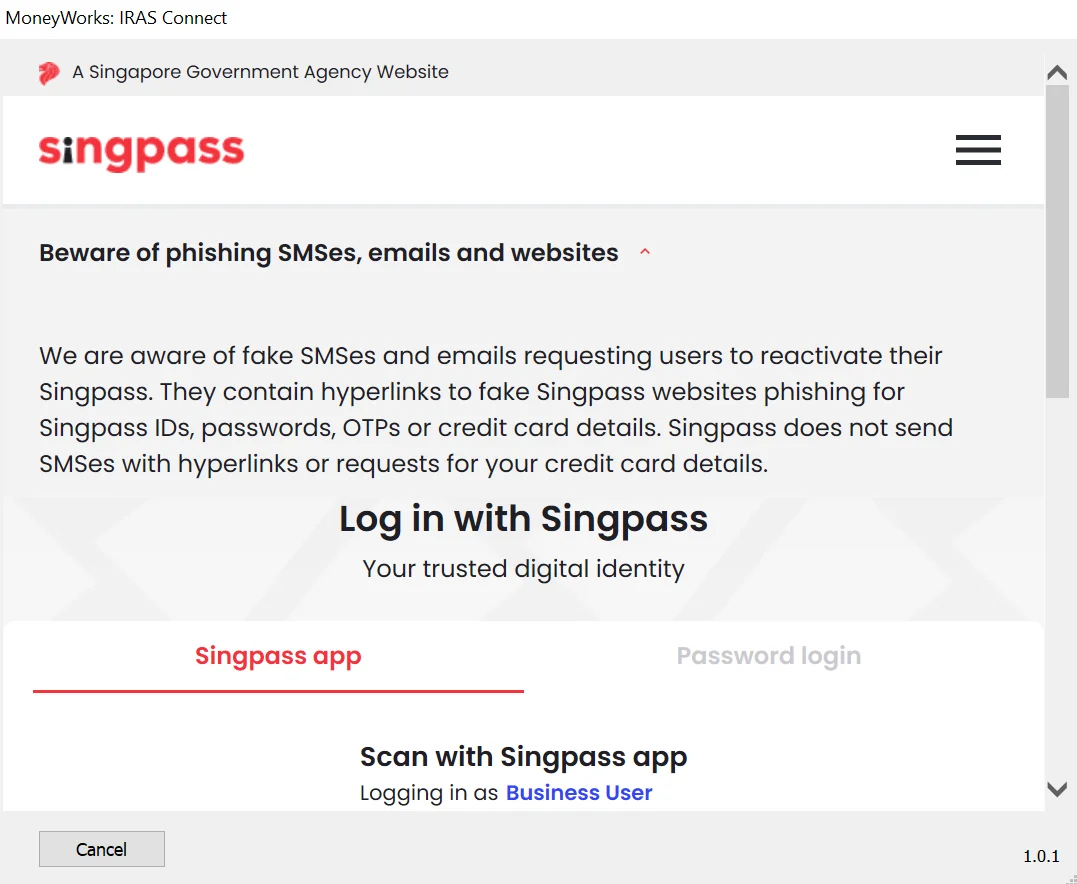
The Singpass login opens inside MoneyWorks. Log in as a Business User, either by scanning the QR code with the Singpass app or with Password login. Then follow the on-screen instructions.
Step 7: Allow MoneyWorks to Submit
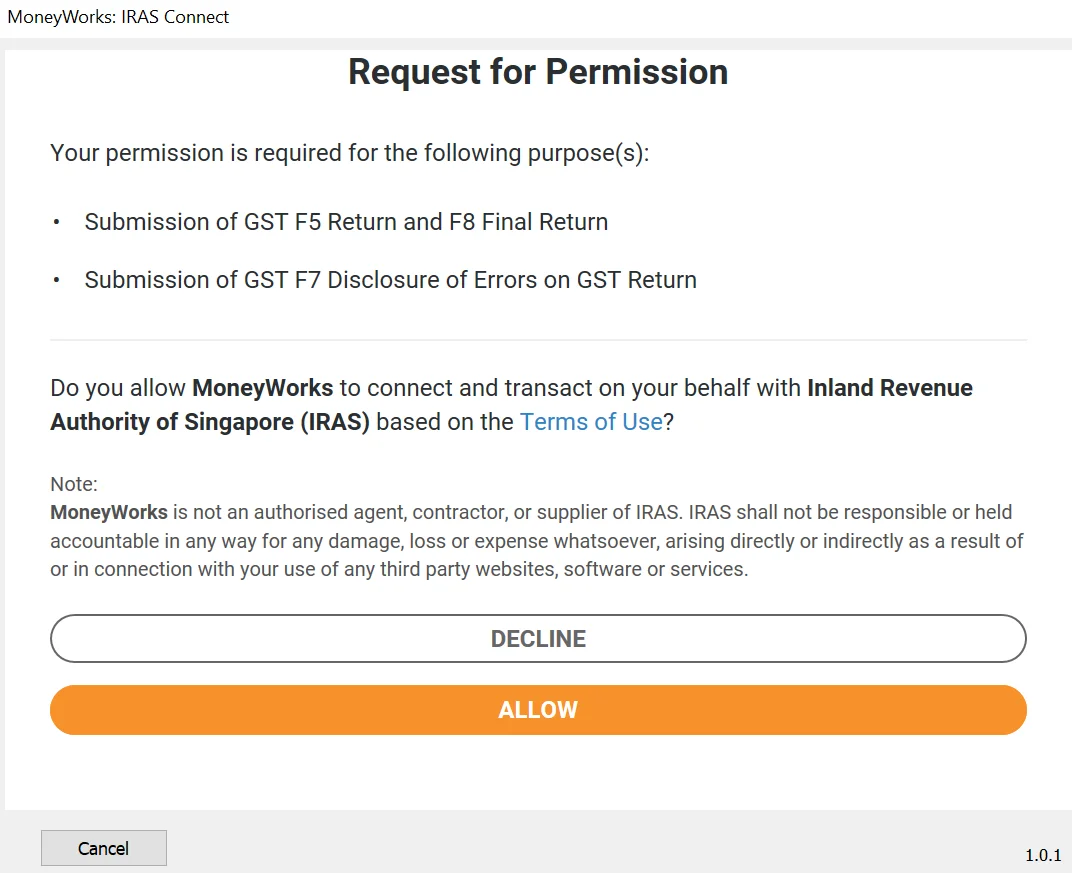
The Request for Permission page asks whether you allow MoneyWorks to connect and transact with IRAS on your behalf. Click ALLOW to submit your return.
Important: Clicking ALLOW submits the return to IRAS. Click DECLINE if you are not ready yet. Nothing is sent.
Step 8: Note Your Acknowledgement Number
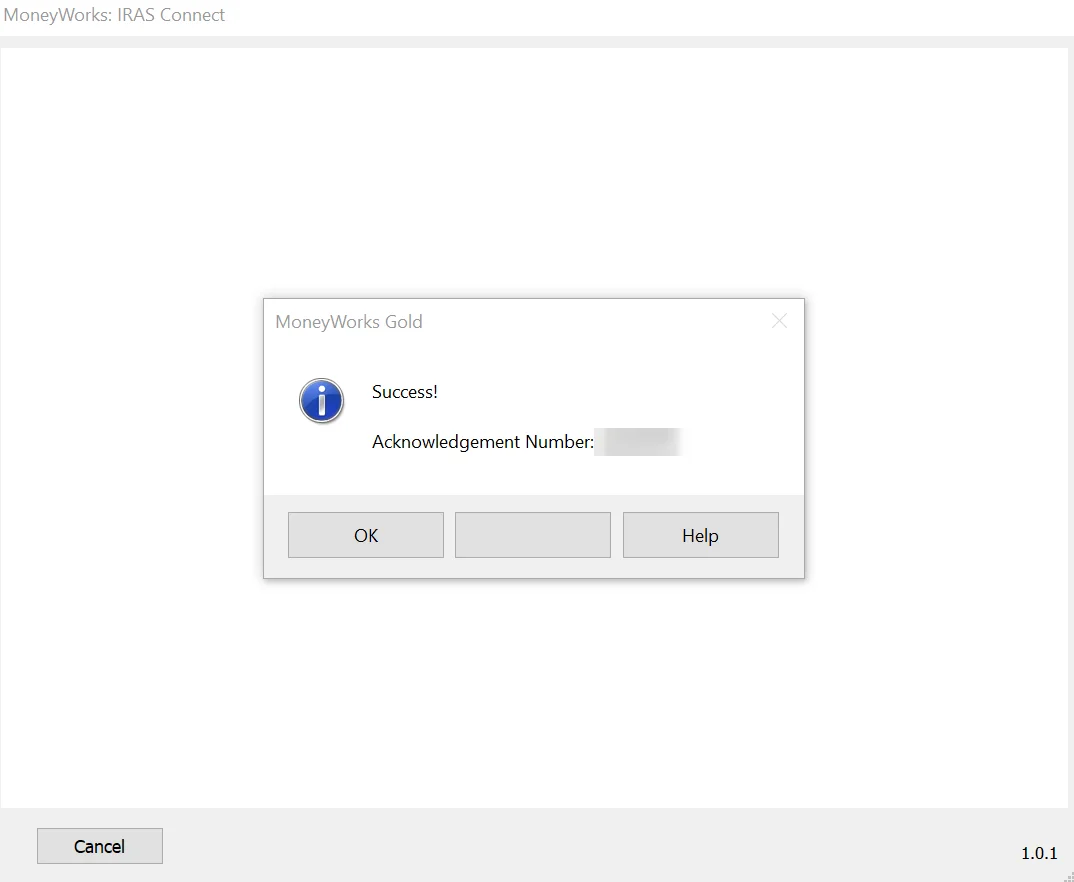
When IRAS accepts your return, MoneyWorks shows a Success! message with an Acknowledgement Number. Click OK.
Write this number down or take a screenshot. You will need it if you contact IRAS about this return.
What Happens After You Submit
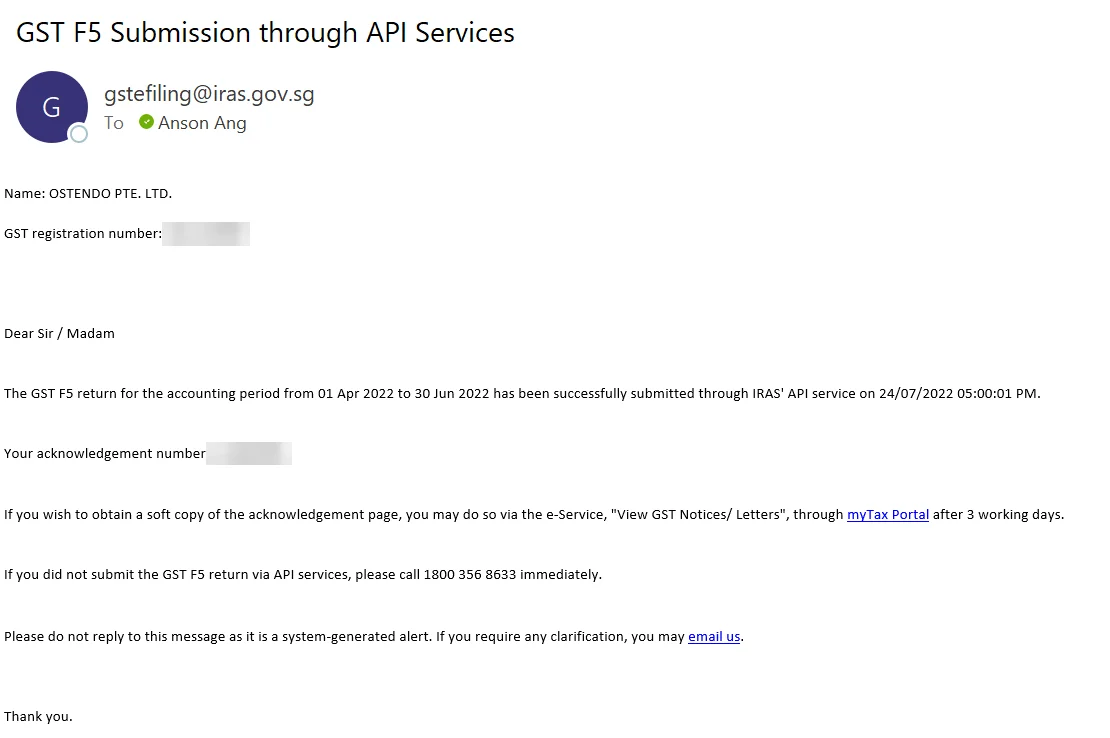
Your GST F5 return is filed once you see the acknowledgement number. IRAS also sends a confirmation email from gstefiling@iras.gov.sg with the subject GST F5 Submission through API Services. The email shows your company name, GST registration number, accounting period, date and time of submission, and acknowledgement number.
You can download a soft copy of the acknowledgement page from myTax Portal under View GST Notices/Letters after three working days.
Important: Filing the return does not pay the GST. If Box 8 shows GST payable, pay IRAS by the same due date, unless you are on GIRO.
Common Problems and Solutions
The wrong period appears in Step 2
IRAS Connect always uses your last finalised GST report. Cancel, finalise the GST report for the correct period, and then open IRAS Connect again.
MoneyWorks reports inconsistencies when you click Submit
The box totals don’t agree with each other, for example Box 4 doesn’t equal Boxes 1 + 2 + 3. Check any amounts you edited by double-clicking. If the totals still don’t agree, review the transactions in your GST report.
Singpass login works but the submission is refused
Your Corppass role is the usual cause. Ask your Corppass admin to check that you have the GST (Filing and Applications) e-Service with the Approver role, and that the authorisation hasn’t expired.
You found a mistake after submitting
You can’t resubmit an F5 for the same period. Run IRAS Connect again and choose F7 to correct the return.
The filing fails close to the due date
Under #SFFS, IRAS grants a two-week filing extension on request if software issues stop you from filing a GST F5 or F8 due between 1 Jan 2023 and 31 Mar 2028 (IRAS). Make the request before the due date, and contact us so we can check your MoneyWorks setup.
Frequently Asked Questions
Can I file my GST F5 directly from MoneyWorks?
Yes. Go to Command > IRAS Connect, choose F5, review the form and submit. MoneyWorks sends the return straight to IRAS, so you don’t need to log in to myTax Portal and retype the figures.
Which MoneyWorks figures does IRAS Connect use?
It uses your last finalised GST report. Finalise the report for the period you want to file before you open IRAS Connect.
Can I change the amounts before submitting?
Only the boxes marked with an asterisk (*). Double-click the amount to edit it. The other boxes come from your GST report, so correct the transactions in MoneyWorks if those numbers are wrong.
Who can submit the GST return?
Anyone with Singpass who has the Approver role for GST (Filing and Applications) in Corppass. A user with only the Preparer role can’t submit.
How do I know IRAS received my return?
MoneyWorks shows a Success message with an acknowledgement number. IRAS also emails you a confirmation with the same number.
How do I correct a GST return I already filed?
Run Command > IRAS Connect again and choose F7 instead of F5.
Related MoneyWorks Tutorials
- How to Set Up InvoiceNow in MoneyWorks
- How to Create a Sales Invoice in MoneyWorks
- How to Record Supplier Payments in MoneyWorks
- How to Back Up MoneyWorks Data
Need Help with MoneyWorks?
Ostendo has supported MoneyWorks users in Singapore since 2012. We can help you:
- Set up IRAS Connect and Corppass authorisation
- Check your GST tax codes and GST report settings
- Correct past GST returns with the F7
- Set up InvoiceNow e-invoicing
- Train your accounts team to file GST with confidence
Explore More MoneyWorks Tutorials or learn more about MoneyWorks Accounting Software.
About the Author
Anson Ang is Co-Founder and Principal Consultant at Ostendo. He has helped Singapore SMEs set up and get the most from MoneyWorks since 2012, from GST and InvoiceNow to inventory, reporting and automation. Anson starts by understanding how a business actually runs, so MoneyWorks is set up to cut repetitive work rather than add to it.