Creating a sales invoice is one of the most common accounting tasks for any business. Whether you are billing customers for products or services, MoneyWorks makes it easy to prepare invoices, record sales transactions, and manage outstanding customer payments.
In this step-by-step tutorial, we will show you how to create a sales invoice in MoneyWorks, enter the customer and item details, check the invoice amount, and print or email the completed invoice.
This guide is suitable for beginners, accounts executives, bookkeepers, and business owners who are learning to use MoneyWorks.
What You Will Learn
By the end of this tutorial, you will know how to:
- Open the Sales Invoice entry screen
- Select a customer
- Enter invoice details
- Add products or services
- Check GST and invoice totals
- Save and post a sales invoice
- Print or email an invoice
Before You Start
Make sure that:
- MoneyWorks is installed and you can open your company file.
- The customer has been created in MoneyWorks.
- The relevant products or services and their account codes have been configured.
- Your company’s GST settings have been configured correctly, if applicable.
- You have the necessary user privileges to create and post sales invoices.
If you are using MoneyWorks for the first time, familiarise yourself with the MoneyWorks Navigator before proceeding.
Step 1: Open the Sales Invoice Screen
- Open your MoneyWorks company file.
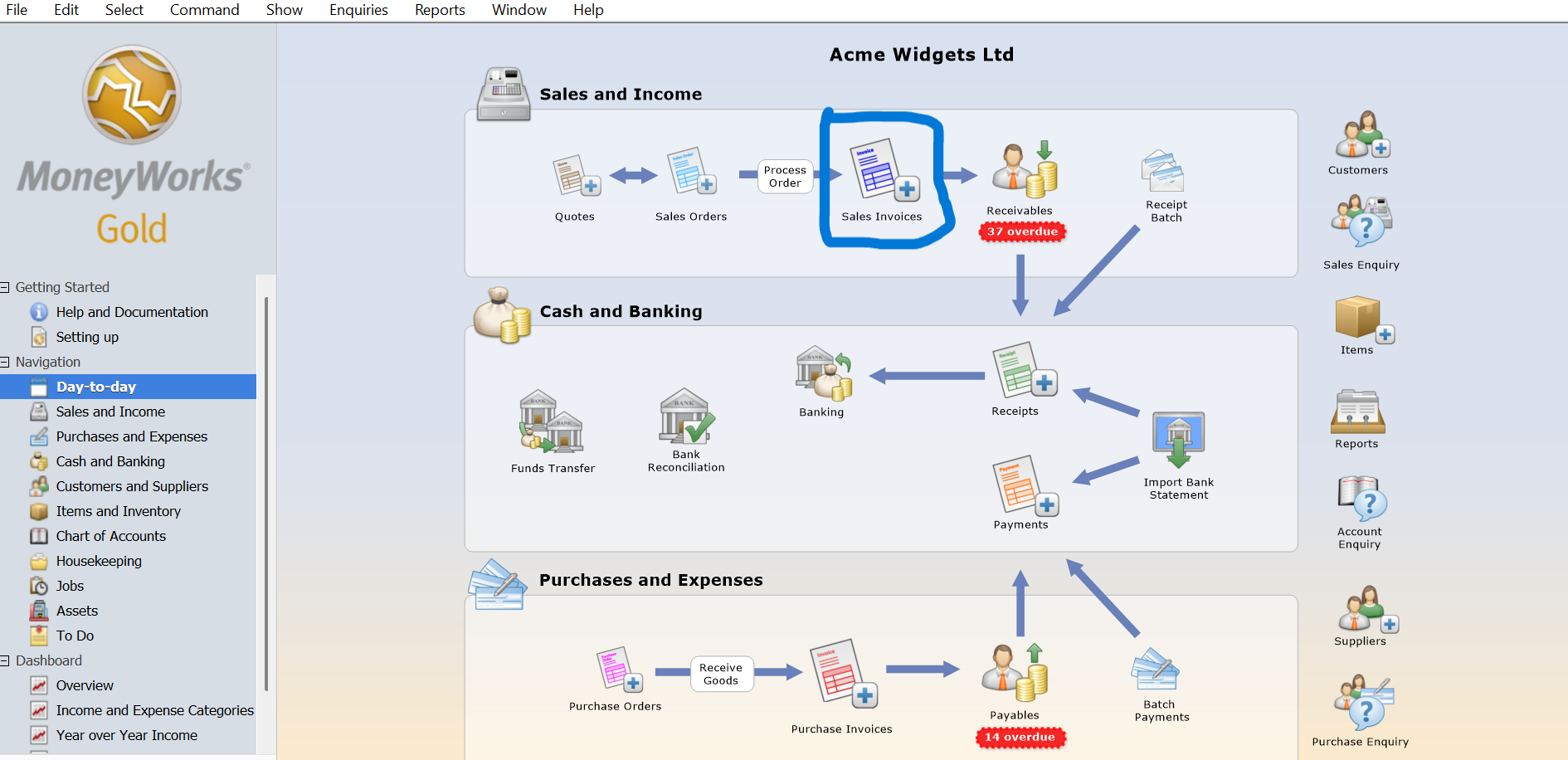
- In the MoneyWorks Navigator, select Day-to-day.
- Look for Sales Invoices in the Sales and Income section.
- Click the + icon beside Sales Invoices.
- The Sales Invoice transaction entry window will appear.
Alternatively, you can open the Transactions list, select Sales Invoices, and click New.
Step 2: Enter the Customer Details
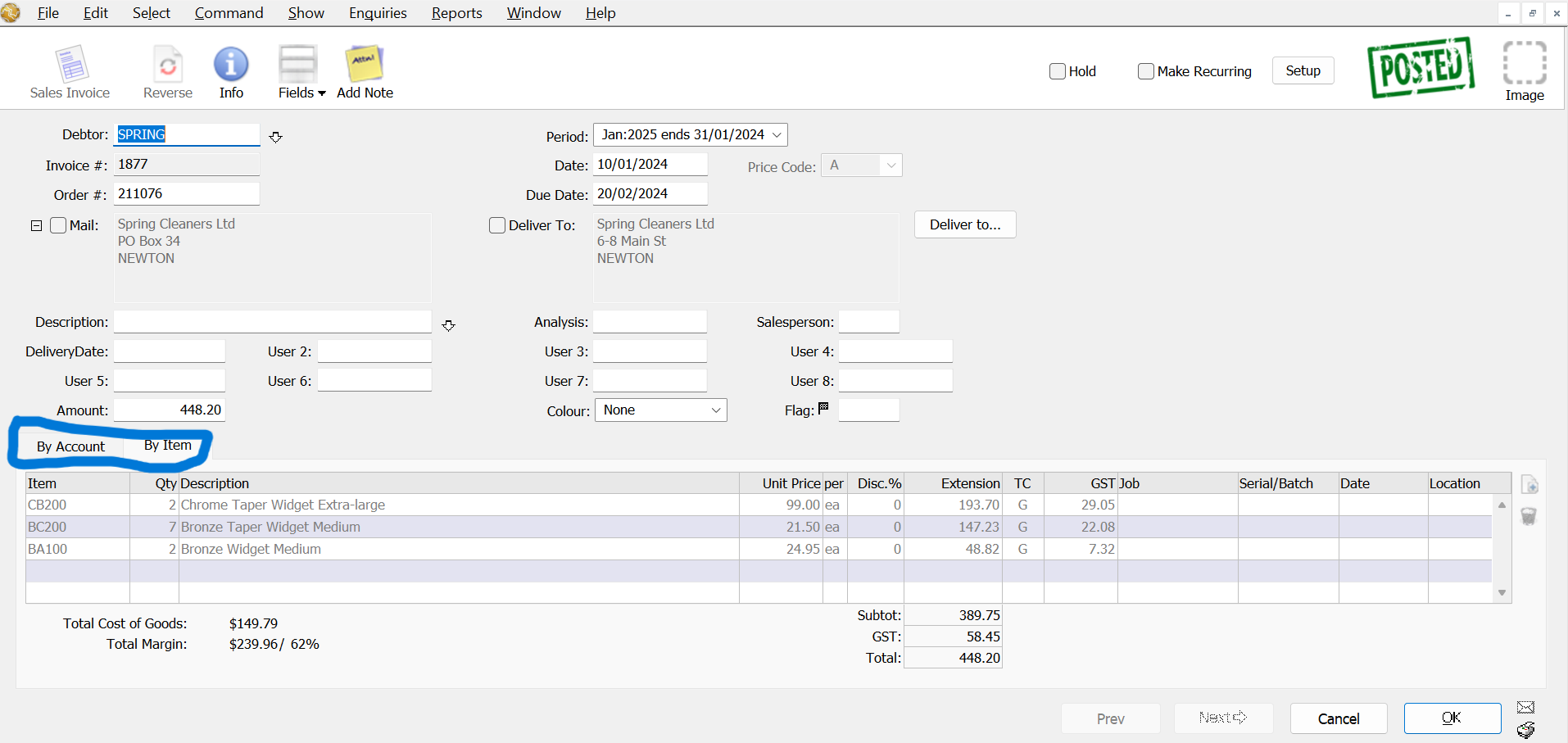
In the invoice entry window, confirm that the transaction type is set to Sales Invoice.
Enter the relevant invoice information:
- Debtor: Select the customer you want to invoice.
- Date: Enter the invoice date.
- Invoice Number: Check the automatically assigned invoice number.
- Due Date: Review the payment due date.
- Reference or Description: Enter additional information where required.
MoneyWorks can automatically assign invoice numbers according to the sequence configured in Document Preferences.
The payment due date is normally calculated using the customer’s payment terms, but it can be changed when necessary.
Tip: Always check that the correct customer is selected before entering the invoice items. This helps prevent invoices from being recorded against the wrong customer account.
Step 3: Enter the Products or Services
MoneyWorks allows you to enter invoice details using item codes or general ledger account codes.
For invoices involving products or services already configured as items:
- Select the By Item tab.
- Enter the item code.
- Enter the quantity.
- Check the item description.
- Verify the unit selling price.
- Apply a discount if applicable.
- Review the tax code.
- Continue entering additional items as required.
MoneyWorks calculates the values based on the information entered.
For sales that need to be allocated directly to general ledger accounts, use By Account instead.
Example: Creating a Sales Invoice
Suppose ABC Pte Ltd is billing a customer for the following items:
| Description | Quantity | Unit Price | Amount |
|---|---|---|---|
| Accounting Software Training | 2 | S$200.00 | S$400.00 |
| Software Setup Service | 1 | S$300.00 | S$300.00 |
| Subtotal | S$700.00 | ||
| GST (9%) | S$63.00 | ||
| Invoice Total | S$763.00 |
This example assumes both services are subject to Singapore’s standard GST rate of 9%.
MoneyWorks calculates the invoice total based on the items, quantities, prices, and applicable tax codes.
Step 4: Check the Invoice Before Saving
Before saving the invoice, review the following information:
- Customer name and billing details
- Invoice date and invoice number
- Payment due date
- Item codes and descriptions
- Quantities and selling prices
- Discounts, if applicable
- GST tax codes and amounts
- Final invoice total
Checking these details before posting helps avoid unnecessary corrections later.
Important: Do not assume that every sales transaction is subject to the same GST treatment. Confirm the appropriate tax code based on the nature of the transaction and your company’s GST registration status.
Step 5: Save and Post the Sales Invoice
Once the invoice details are correct, you can save the transaction.
MoneyWorks distinguishes between saving and posting.
- An unposted invoice is saved in MoneyWorks but has not yet updated the relevant accounting balances.
- A posted invoice updates the accounting records, including the customer’s outstanding balance and the relevant sales accounts.
To post the invoice while saving:
- Click the Post icon, represented by a small envelope.
- Confirm the invoice details are correct.
- Click OK to accept the transaction.
If you do not enable posting, you can save the invoice as an unposted transaction and post it later after reviewing the details.
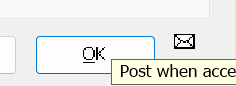
Important: Once an invoice is posted, its accounting information cannot simply be edited in the same way as an unposted invoice. Any correction should follow the appropriate MoneyWorks cancellation or adjustment procedure.
Step 6: Print or Email the Sales Invoice
MoneyWorks allows you to print an invoice or send it to your customer electronically.
Print the invoice when saving
- Open the sales invoice.
- Click the Printer icon to enable printing.
- Click OK to save the transaction.
- MoneyWorks opens the invoice printing process.
- Select the appropriate invoice form.
- Preview and print the invoice.
Print an existing invoice
- Open the Transactions list.
- Locate and select the required sales invoice.
- Choose Command → Print Sales Invoice or use the available invoice toolbar button.
- Select the required invoice template.
- Choose the desired output option.
Depending on the selected output options, you can print the invoice, email it, or save it as a PDF.
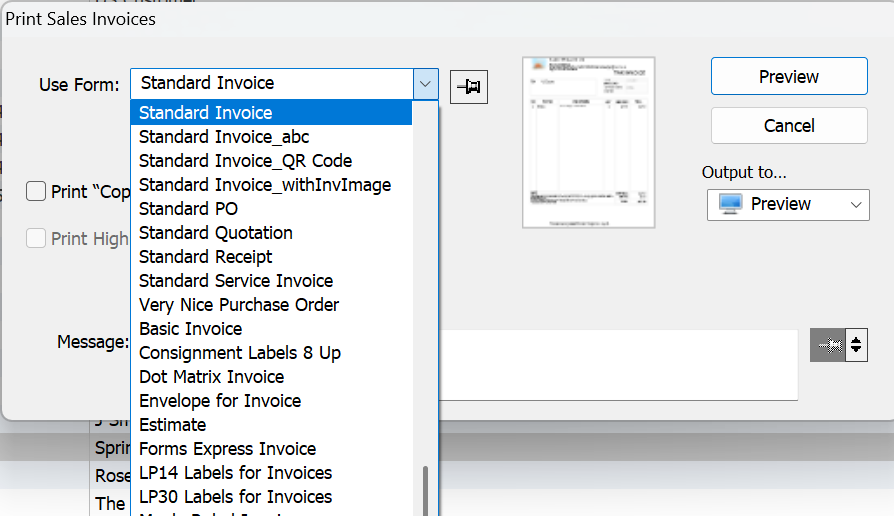
Email the invoice to your customer
When emailing an invoice:
- Select the invoice form.
- Choose the email output option.
- Review the recipient’s email address.
- Add an appropriate message.
- Send the invoice.
Before sending, confirm that the invoice layout displays the correct company details, payment instructions, and transaction values.
Step 7: Verify the Sales Invoice
After saving or posting the invoice, return to the Sales Invoices transaction list.
Check that:
- The invoice is visible in the transaction list.
- The invoice number is correct.
- The customer and invoice amount are correct.
- The transaction has the intended posted or unposted status.
For a posted invoice, MoneyWorks records the relevant accounting entries automatically. Generally, a sales invoice increases Accounts Receivable and records the corresponding sales revenue and applicable GST liability.
This eliminates the need to prepare a separate manual journal for a normal sales invoice.
Next step: when your customer pays, follow our guide on How to Record Customer Receipts in MoneyWorks to allocate the payment to this invoice.
Common Problems When Creating Sales Invoices
The customer does not appear
Check whether the customer has been created in MoneyWorks and that the correct customer code is being used.
The item code cannot be found
Verify that the item has been created and is available for use in the transaction.
The selling price is incorrect
Review the product’s selling price settings and any customer-specific pricing or discounts.
The GST amount is incorrect
Check the tax code assigned to the transaction line and confirm the company’s GST configuration.
The invoice cannot be posted
Check that all required fields have been completed and that you have the appropriate posting privileges.
The invoice cannot be printed
Check the selected invoice form and your printing privileges. Certain users may be restricted from printing unposted invoices.
Frequently Asked Questions
Can I save a MoneyWorks sales invoice without posting it?
Yes. You can save a sales invoice as an unposted transaction and post it later after reviewing the details.
Does MoneyWorks automatically generate invoice numbers?
Yes. MoneyWorks can assign sequential invoice numbers based on the numbering settings configured in Document Preferences.
Can I change the payment due date?
Yes. The due date is normally calculated from the customer’s payment terms, but it can be overridden when required.
Can I email an invoice directly from MoneyWorks?
Yes. MoneyWorks supports emailing sales invoices using the available forms and email output options.
Can I customise the MoneyWorks sales invoice layout?
Yes. MoneyWorks supports customised invoice forms, allowing businesses to include their logo, payment details, terms and conditions, and other relevant information.
What happens when I post a sales invoice?
Posting the invoice updates the relevant accounting records, including Accounts Receivable, sales revenue, and applicable tax amounts.
Need Help with MoneyWorks Accounting Software?
Ostendo provides MoneyWorks consultation, implementation, training, data migration, invoice customisation, reporting, and ongoing technical support for Singapore businesses.
Whether you are setting up MoneyWorks for the first time or want to improve your existing accounting processes, our team can help you use the software more effectively.
Learn more about MoneyWorks Accounting Software.