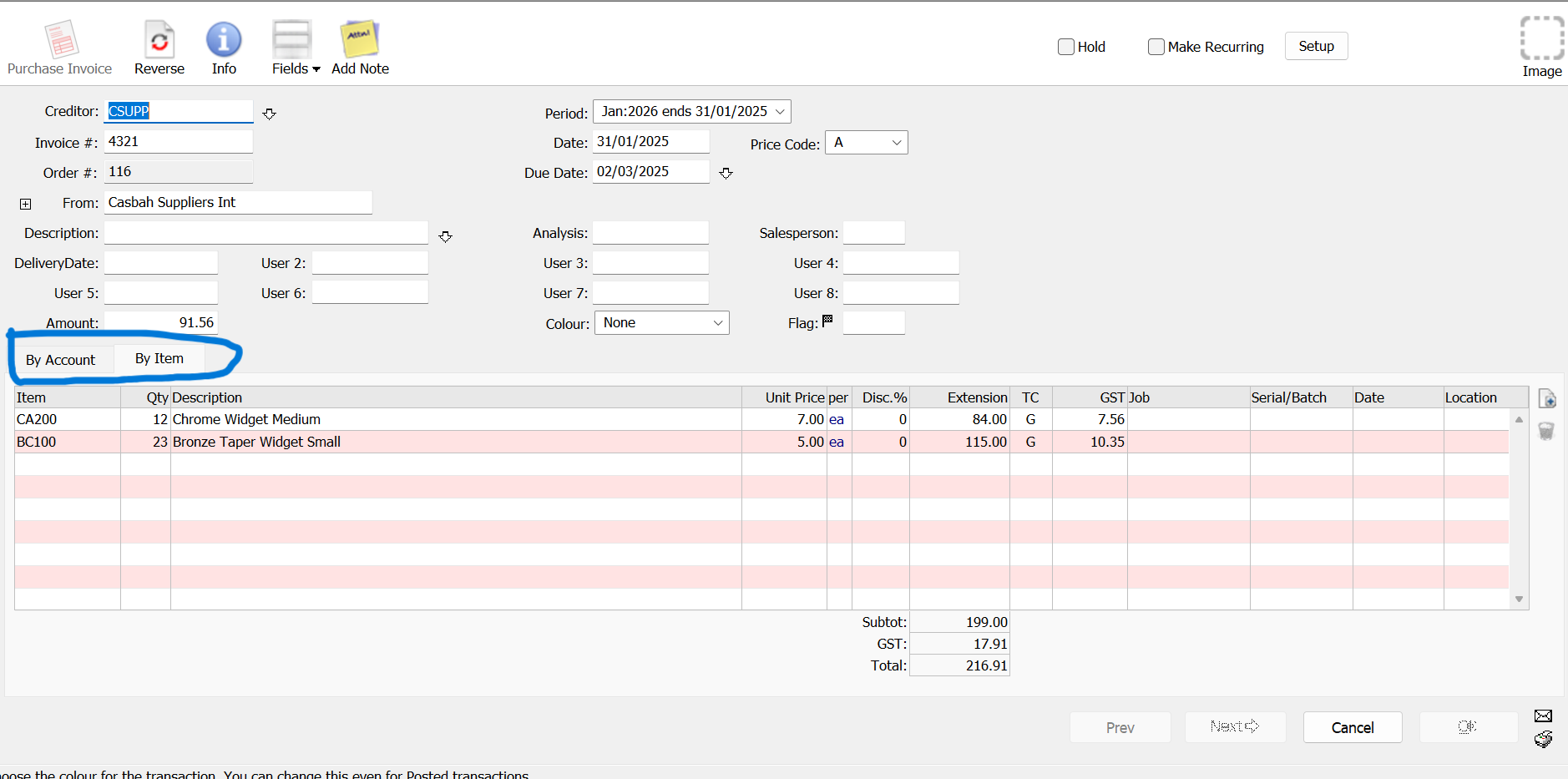
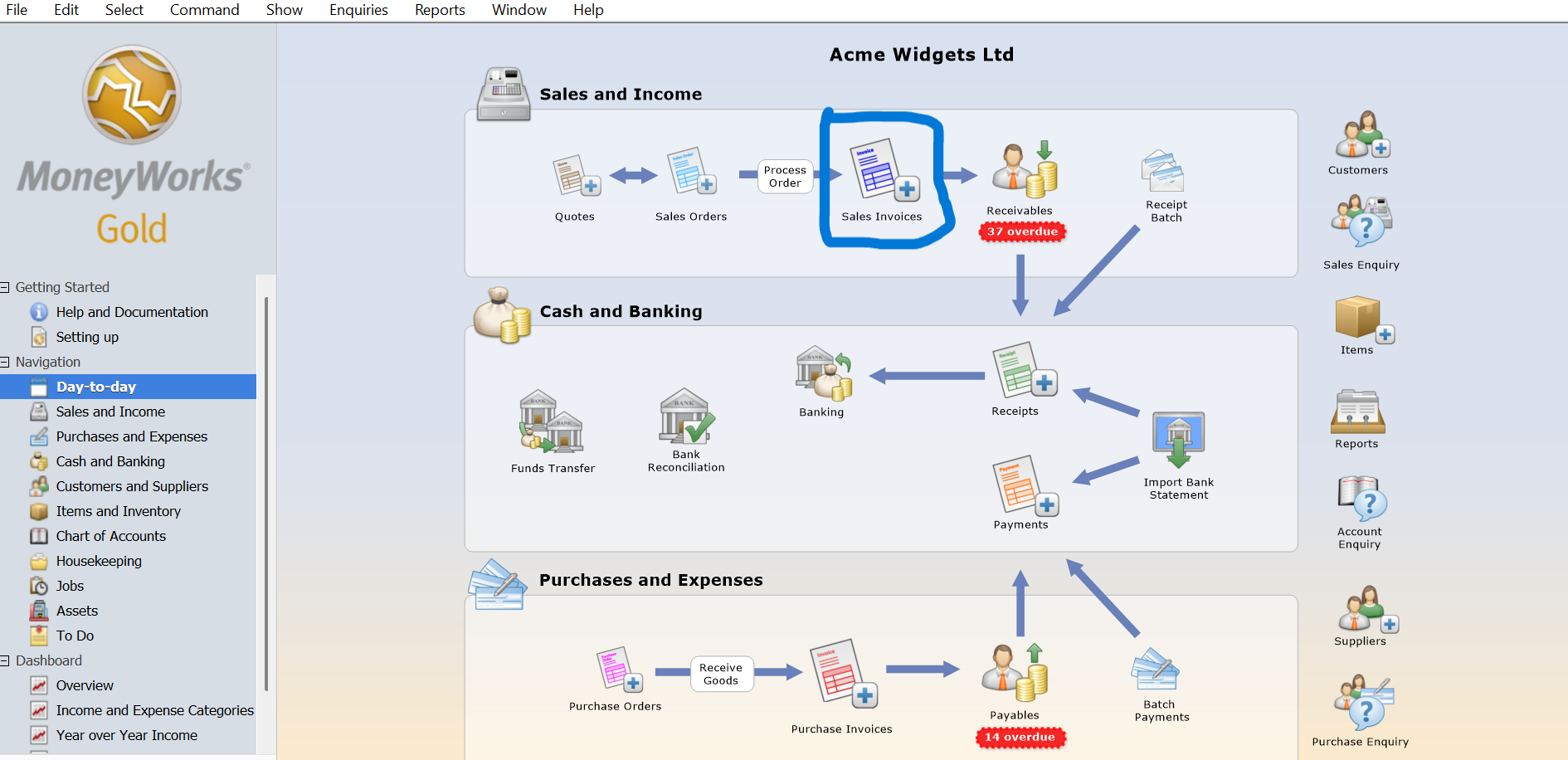
After issuing a sales invoice, the next important accounting task is recording the customer’s payment. Whether your customer pays through bank transfer, cheque, cash or another payment method, it is important to record the receipt correctly so that the outstanding invoice balance is updated.
MoneyWorks allows you to record customer receipts and allocate payments directly to outstanding sales invoices. This helps your accounts team maintain accurate customer balances, monitor unpaid invoices and simplify bank reconciliation.
In this tutorial, we will demonstrate how to record a customer receipt, allocate the payment to a sales invoice and handle partial payments.
What You Will Learn
By the end of this tutorial, you will know how to:
- Open the Customer Receipt entry screen
- Select the customer making payment
- Enter the payment date, amount and bank account
- Allocate receipts to outstanding sales invoices
- Record partial payments
- Process payments covering multiple invoices
- Verify that customer balances have been updated
Before You Start
Make sure that:
- The relevant customer has been created in MoneyWorks.
- The sales invoice has already been entered and posted.
- The correct bank account has been configured.
- You have permission to enter customer receipt transactions.
If you have not created a sales invoice, refer to our tutorial: How to Create a Sales Invoice in MoneyWorks.
Step 1: Open the Customer Receipt Screen
- Open the relevant MoneyWorks company file.
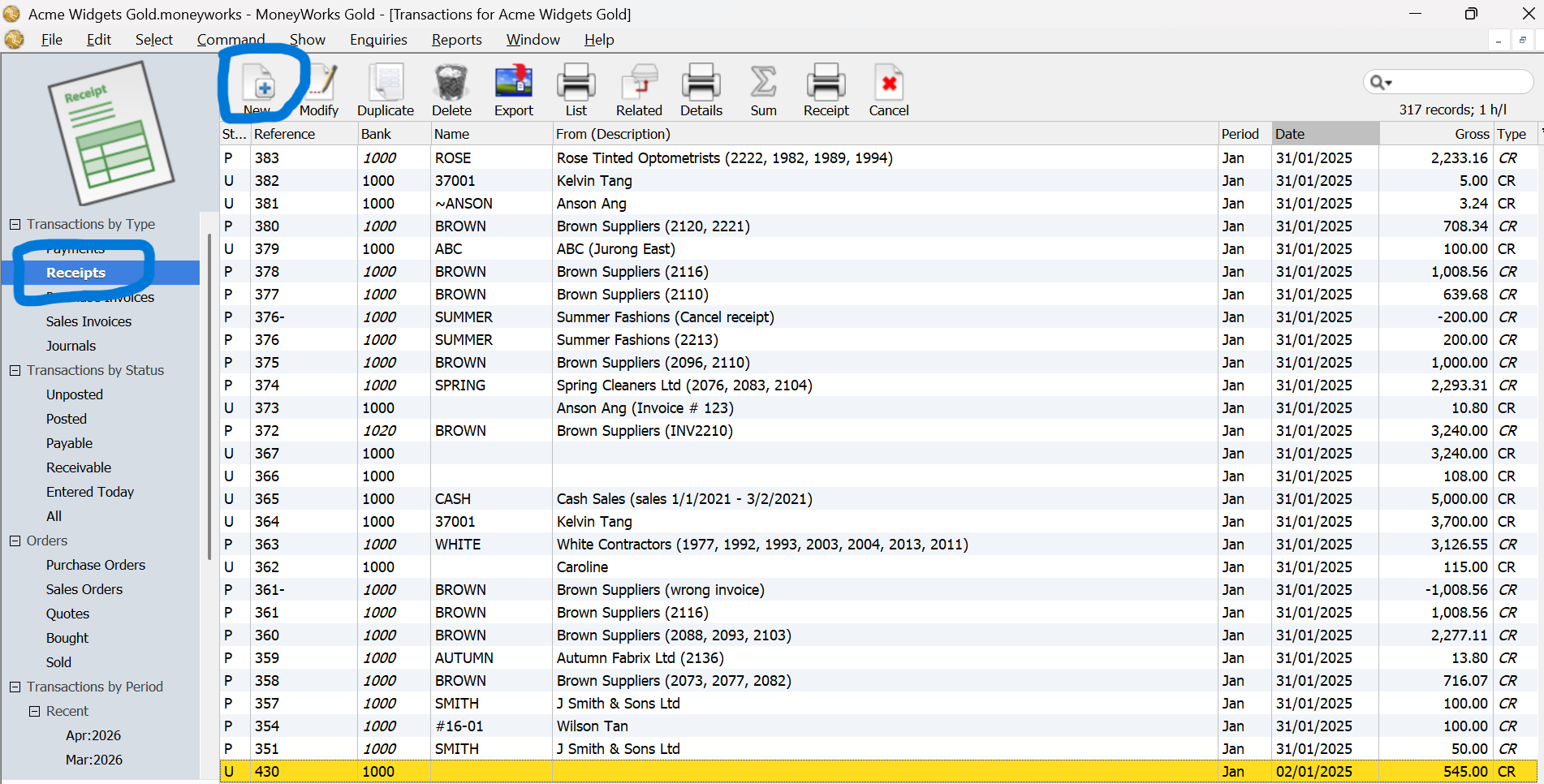
- Open the Transactions list.
- Click New or press Ctrl + N on Windows (Command + N on Mac).
- Make sure the transaction type is set to Receipt.
Alternatively, locate the relevant invoice in the Receivables list, right-click it and select Receipt this Invoice.
This shortcut is useful when you already know which invoice the customer is paying.
Step 2: Select the Customer
In the receipt entry window:
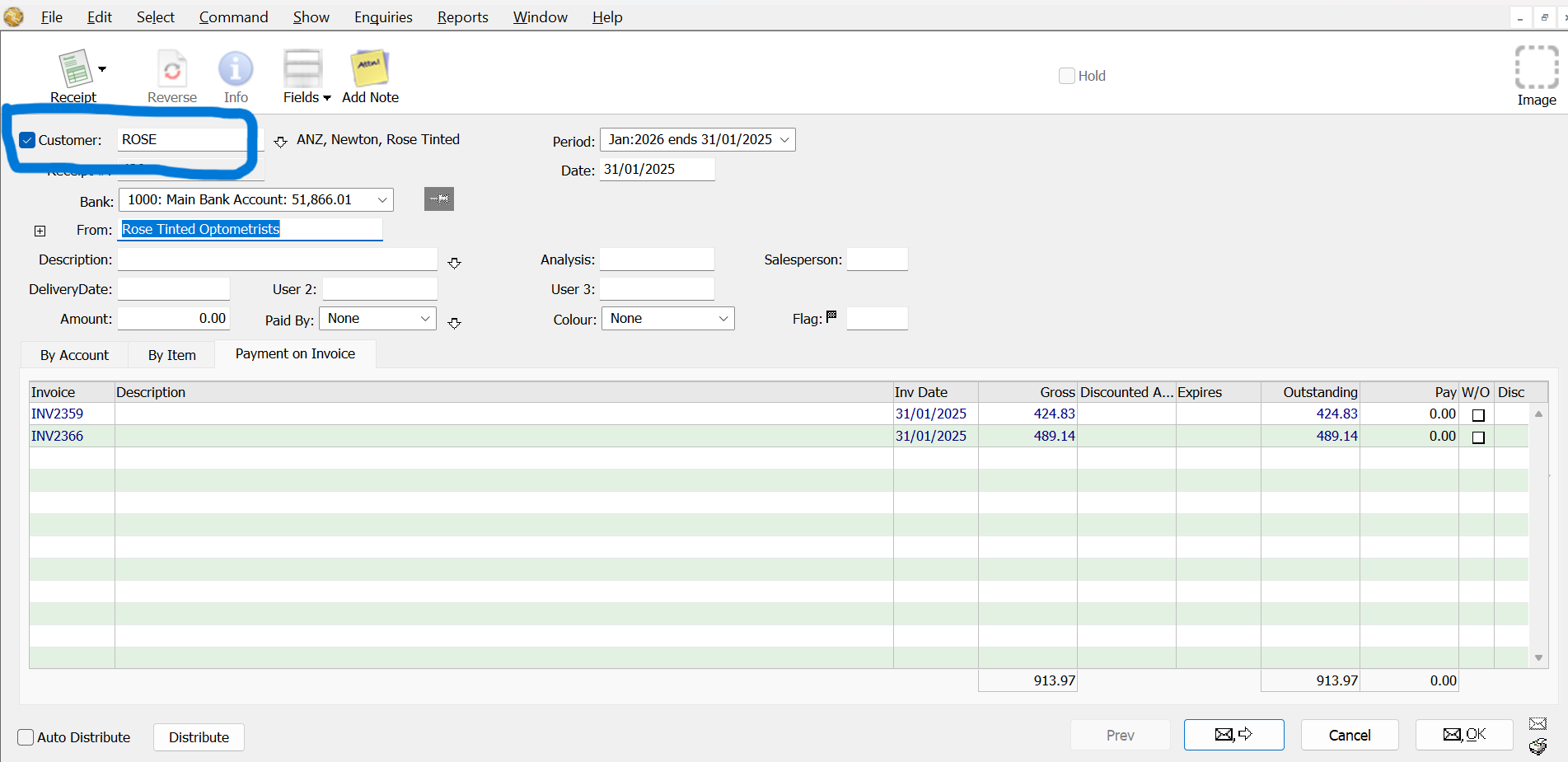
- Select the Customer checkbox.
- Enter or select the customer’s debtor code.
- Confirm the customer name displayed in the From field.
MoneyWorks will display the customer’s outstanding invoices under the Payment on Invoice tab.
Important: Always select the correct customer code so that MoneyWorks can identify the outstanding invoices. Entering only the customer’s name in the description is not sufficient for allocating the payment.
Step 3: Enter the Payment Details
Enter the following information:
| Field | Description |
|---|---|
| Receipt Number | Reference number for the receipt |
| Date | Date the payment was received |
| Bank Account | Account receiving the money |
| Amount | Total amount received |
| Paid By | Payment method, such as cash or cheque |
| Description | Optional payment reference or explanation |
Check that the correct bank account and date have been selected.
If the payment is received but will only be deposited into the bank later, you can record it in a suitable Bank Holding account and process the bank deposit afterward.
For payments such as cheques or credit cards, additional payment details may be entered using the arrow beside Paid By.
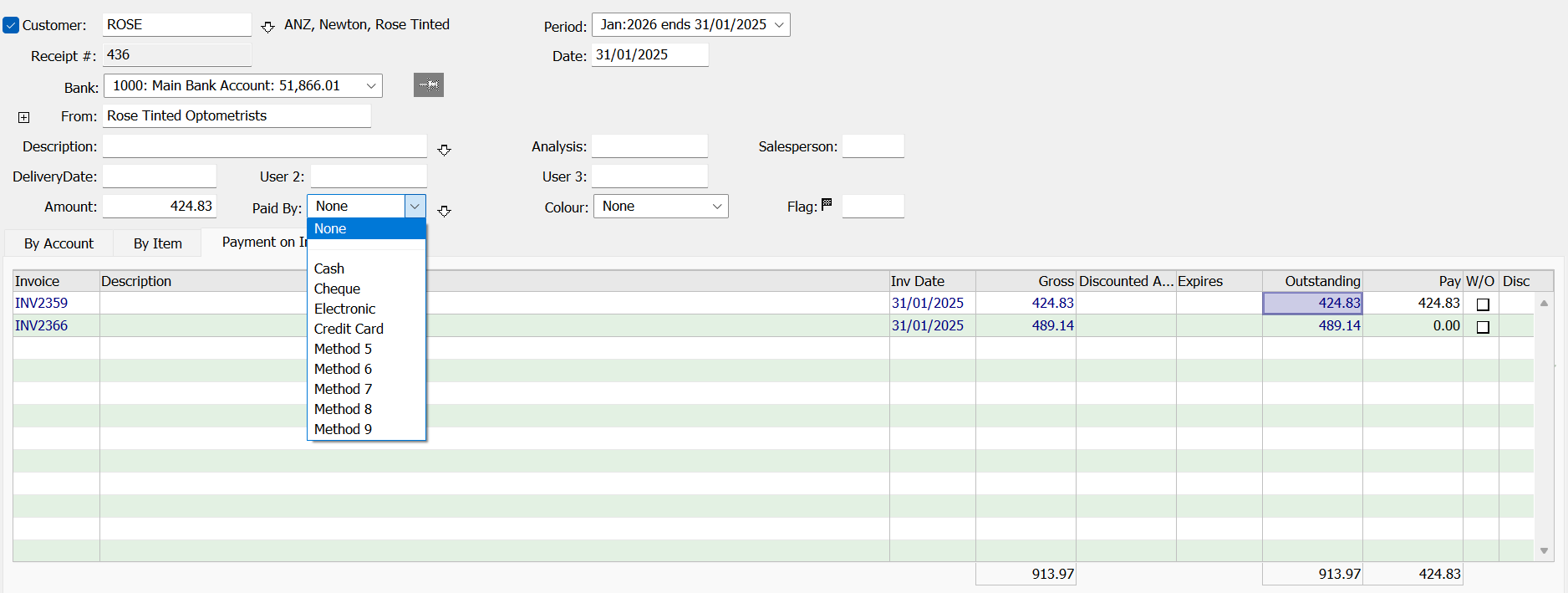
Step 4: Allocate the Payment to an Outstanding Invoice
After selecting the customer, MoneyWorks displays outstanding invoices in the Payment on Invoice section.
For example, the customer may have the following invoices:
| Invoice | Outstanding Amount |
|---|---|
| INV2359 | S$424.83 |
| INV2366 | S$489.14 |
| Total | S$913.97 |
Suppose the customer pays S$424.83 for invoice INV2359. Follow these steps:
- Enter S$424.83 as the receipt amount.
- Locate invoice INV2359 in the outstanding invoice list.
- Click its Outstanding amount to transfer the value into the Pay column, or enter S$424.83 manually.
- Confirm that the amount allocated matches the receipt amount.
This tells MoneyWorks that the payment is intended to settle invoice INV2359.
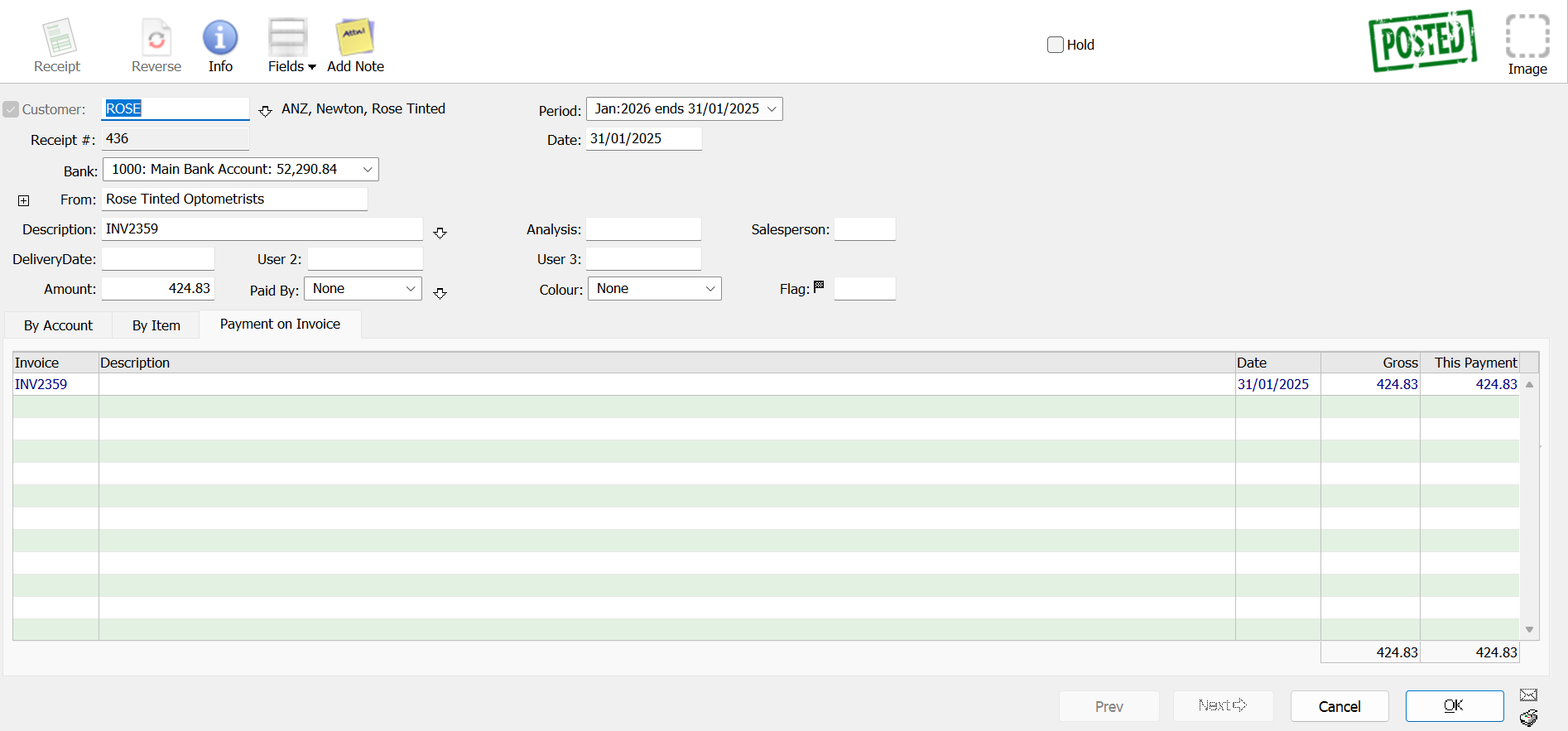
Important: When receiving payment for a previously issued invoice, allocate the receipt against that invoice rather than directly to a sales income account. The sales revenue was already recorded when the invoice was posted.
Step 5: Save and Post the Customer Receipt
Once you have entered and allocated the payment:
- Check the customer name.
- Verify the receipt date and amount.
- Confirm the correct bank account.
- Check that the payment is allocated to the intended invoice.
- Click OK to accept the receipt, or Next if you need to enter another receipt.
MoneyWorks automatically posts an accepted receipt allocated to customer invoices. After posting, the receipt is recorded in MoneyWorks and the corresponding outstanding invoice balance is updated.
Important: A posted invoice receipt cannot be edited like an unposted transaction. If an error is discovered, use the appropriate cancellation and reprocessing procedure.
Step 6: How to Record a Partial Customer Payment
Sometimes customers pay only part of an invoice. For example:
| Description | Amount |
|---|---|
| Original Invoice | S$1,000.00 |
| Payment Received | S$400.00 |
| Remaining Balance | S$600.00 |
To record this:
- Create a new receipt.
- Select the customer.
- Enter S$400.00 in the Amount field.
- Locate the outstanding invoice.
- Enter S$400.00 in its Pay column.
- Click OK.
MoneyWorks records the partial payment and leaves the remaining S$600.00 outstanding. When the customer pays the balance later, record another receipt and allocate it against the same invoice.
Step 7: How to Allocate One Payment to Multiple Invoices
Customers sometimes make one combined payment for several invoices. For example:
| Invoice | Payment |
|---|---|
| INV-1001 | S$500.00 |
| INV-1002 | S$300.00 |
| INV-1003 | S$200.00 |
| Total Received | S$1,000.00 |
To process this:
- Create one receipt for S$1,000.00.
- Select the customer.
- Locate the three invoices.
- Enter the respective payment amounts in the Pay column.
- Confirm the total allocation is S$1,000.00.
- Accept the receipt.
You can also use the Distribute button to allocate the receipt automatically according to the invoice order.
Check the allocations carefully before accepting the transaction, especially when the customer has many outstanding invoices or credit notes.
Step 8: Verify the Customer Payment
After recording the receipt, check that the transaction has been processed correctly. You can:
- Open the Receivables view in the Transactions list.
- Check whether the fully paid invoice has been cleared from the outstanding list.
- Review the remaining balance for any partially paid invoice.
- Use the Payments History enquiry to locate the invoice and its associated receipt transactions.
A fully settled invoice should no longer appear as outstanding in the Receivables view.
Accounting Effect of Receiving Payment
When a customer pays an existing sales invoice, the normal accounting entry is:
| Account | Debit | Credit |
|---|---|---|
| Bank Account | S$500.00 | |
| Accounts Receivable | S$500.00 |
The payment increases the bank balance and reduces the amount owed by the customer.
No additional sales revenue is recorded because the revenue was already recognised when the original sales invoice was posted.
Common Problems and Solutions
The customer’s outstanding invoices do not appear
Check that the Customer checkbox is selected and that the correct debtor code has been entered. Also confirm that the invoice was posted and remains unpaid.
The payment was allocated to the wrong invoice
Before accepting the receipt, correct the amounts in the Pay column. If the receipt has already been posted, review the appropriate cancellation and reprocessing procedure.
The amount received is less than the invoice amount
Enter the amount actually received in the Pay column. MoneyWorks will retain the unpaid balance.
The customer paid more than the outstanding amount
MoneyWorks provides options for handling customer overpayments. Review the excess amount before accepting the receipt and choose the appropriate overpayment treatment.
The receipt was recorded in the wrong bank account
Verify the bank account before accepting the receipt. If the receipt has already been posted, investigate the correction required rather than entering another receipt that might duplicate the payment.
The customer has paid, but the invoice still appears outstanding
Check whether the receipt was allocated to the correct invoice and whether any balance remains unpaid.
Frequently Asked Questions
Can I record a partial customer payment in MoneyWorks?
Yes. Enter the amount received against the relevant invoice. The unpaid balance remains outstanding until further payment or an appropriate adjustment is recorded.
Can one receipt pay multiple invoices?
Yes. A customer receipt can be allocated across multiple outstanding invoices belonging to the same customer.
Can I record a customer payment before the money reaches the bank?
Yes. Where appropriate, you can record the payment into a Bank Holding account and transfer or bank the funds later.
Does MoneyWorks automatically update Accounts Receivable?
Yes. When a customer receipt is processed and posted against an existing sales invoice, MoneyWorks updates the relevant Accounts Receivable balance.
Can I process multiple customer receipts together?
Yes. MoneyWorks provides Batch Debtors Receipts for processing multiple customer payments.
Can I import customer payments from a bank statement?
MoneyWorks supports loading bank statements and allocating imported deposits against outstanding invoices. This can help reduce manual entry.
Need Help with MoneyWorks Accounting?
Ostendo provides MoneyWorks accounting software consultation, implementation, training, customisation and ongoing technical support for Singapore businesses.
We can help you:
- Configure customer accounts and payment terms
- Set up customer receipts and payment allocation
- Improve bank reconciliation procedures
- Import bank statements
- Customise invoices and customer statements
- Train your accounts team to use MoneyWorks effectively
Learn more about MoneyWorks Accounting Software.