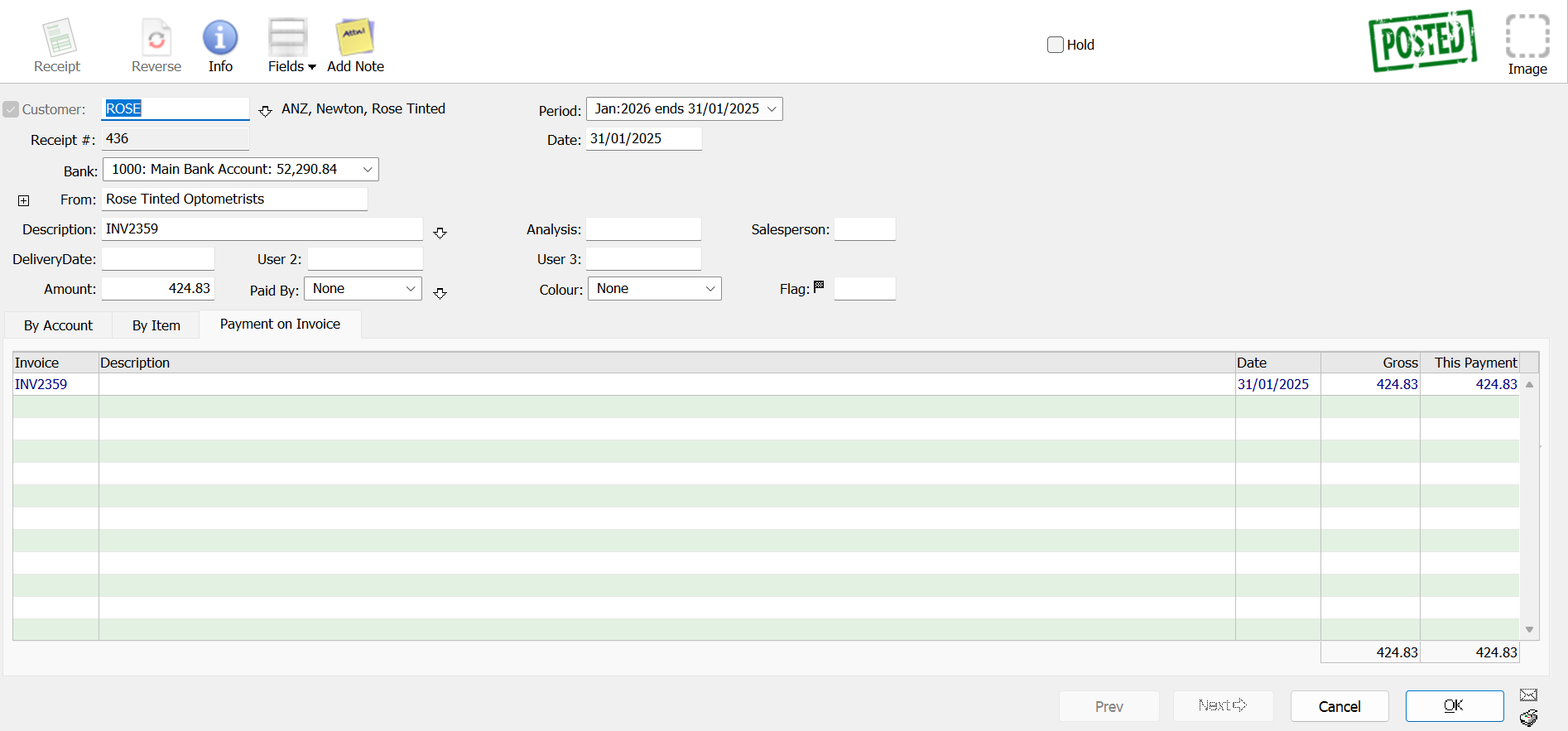
When your business receives an invoice from a supplier, the accounts team needs to record it correctly to keep track of purchases, expenses, GST and outstanding payments.
MoneyWorks allows you to enter supplier invoices as Purchase Invoices. Once posted, these transactions update Accounts Payable and the relevant accounting records, making it easier to monitor outstanding supplier invoices and manage payments.
In this step-by-step tutorial, we will show you how to create a purchase invoice in MoneyWorks, select the supplier, enter invoice details, allocate expenses and check GST before posting.
This guide is suitable for accounts executives, bookkeepers and business owners who are learning to manage supplier invoices in MoneyWorks.
What You Will Learn
By the end of this tutorial, you will know how to:
- Open the Purchase Invoice entry screen
- Select an existing supplier or create a new supplier
- Enter the supplier invoice number, date and payment due date
- Allocate purchases using general ledger accounts or item codes
- Check GST and invoice totals
- Save and post a purchase invoice
- Verify outstanding supplier invoices
- Put an invoice on hold when necessary
Before You Start
Make sure that:
- Your MoneyWorks company file is open.
- The supplier has been created, or you have the details needed to create the supplier.
- The relevant expense or purchase accounts have been configured.
- GST tax codes have been set up correctly, if applicable.
- You have permission to create and post purchase invoices.
- You have the supplier’s invoice available for reference.
Tip: Keep the original supplier invoice open while entering the transaction so you can compare the invoice number, date, amounts and tax treatment.
Step 1: Open the Purchase Invoice Entry Screen
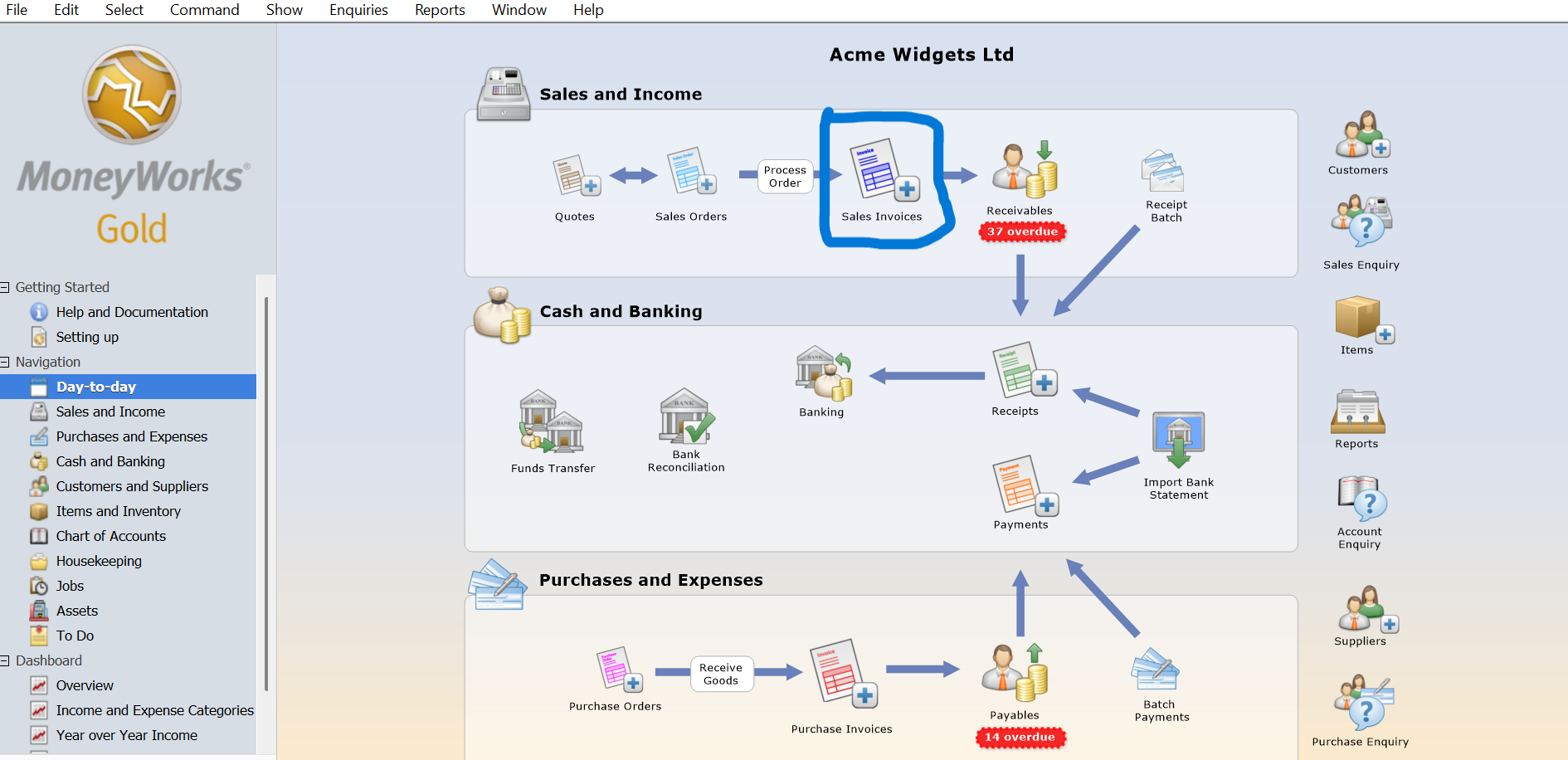
- Open your MoneyWorks company file.
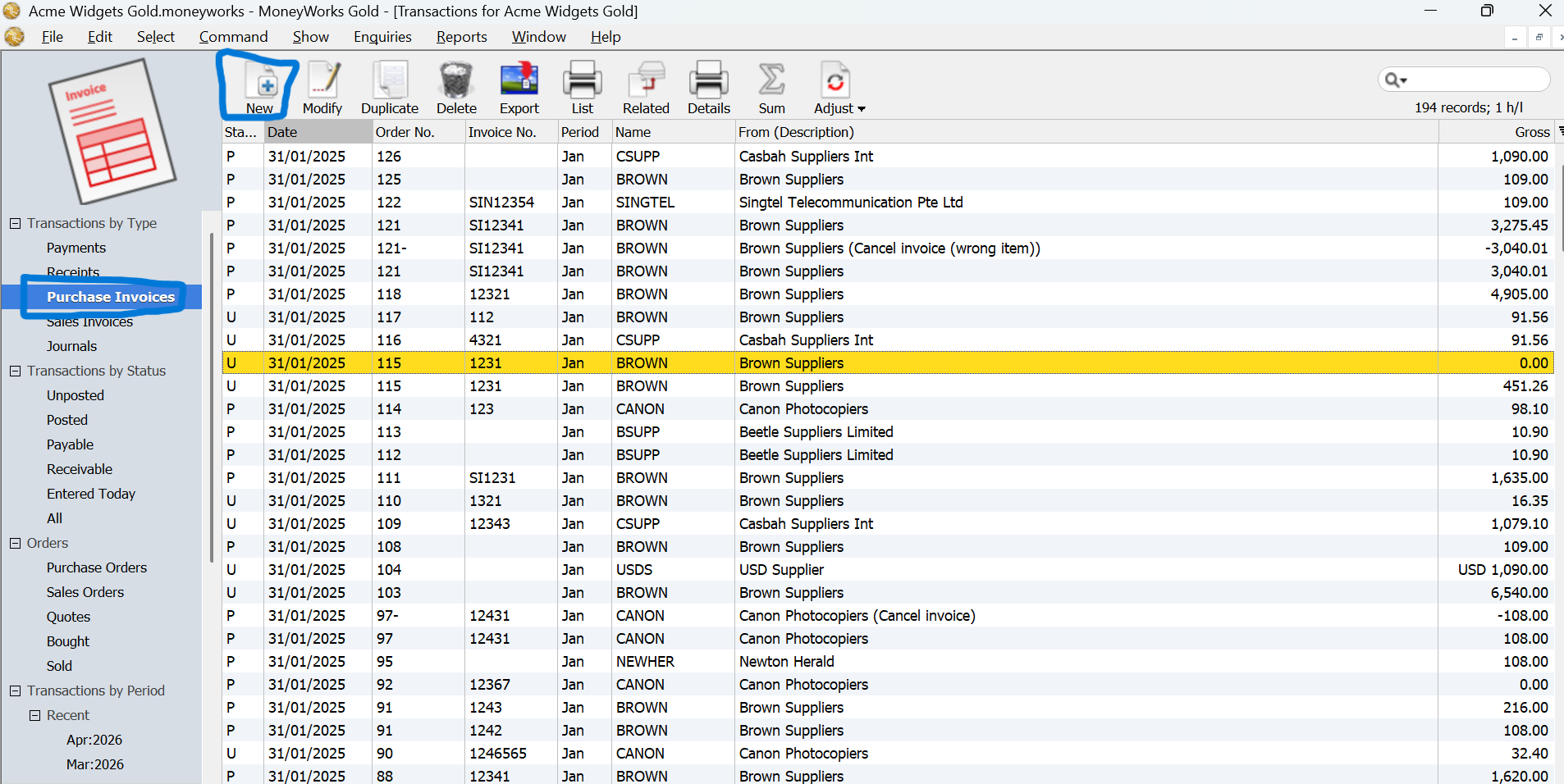
- Go to the Transactions list.
- Select the Purchase Invoices tab.
- Choose Edit → New Purchase Invoice.
Alternatively, press Ctrl + N on Windows or Command + N on macOS while the Purchase Invoices tab is selected. The Purchase Invoice entry window will appear.
Step 2: Select the Supplier
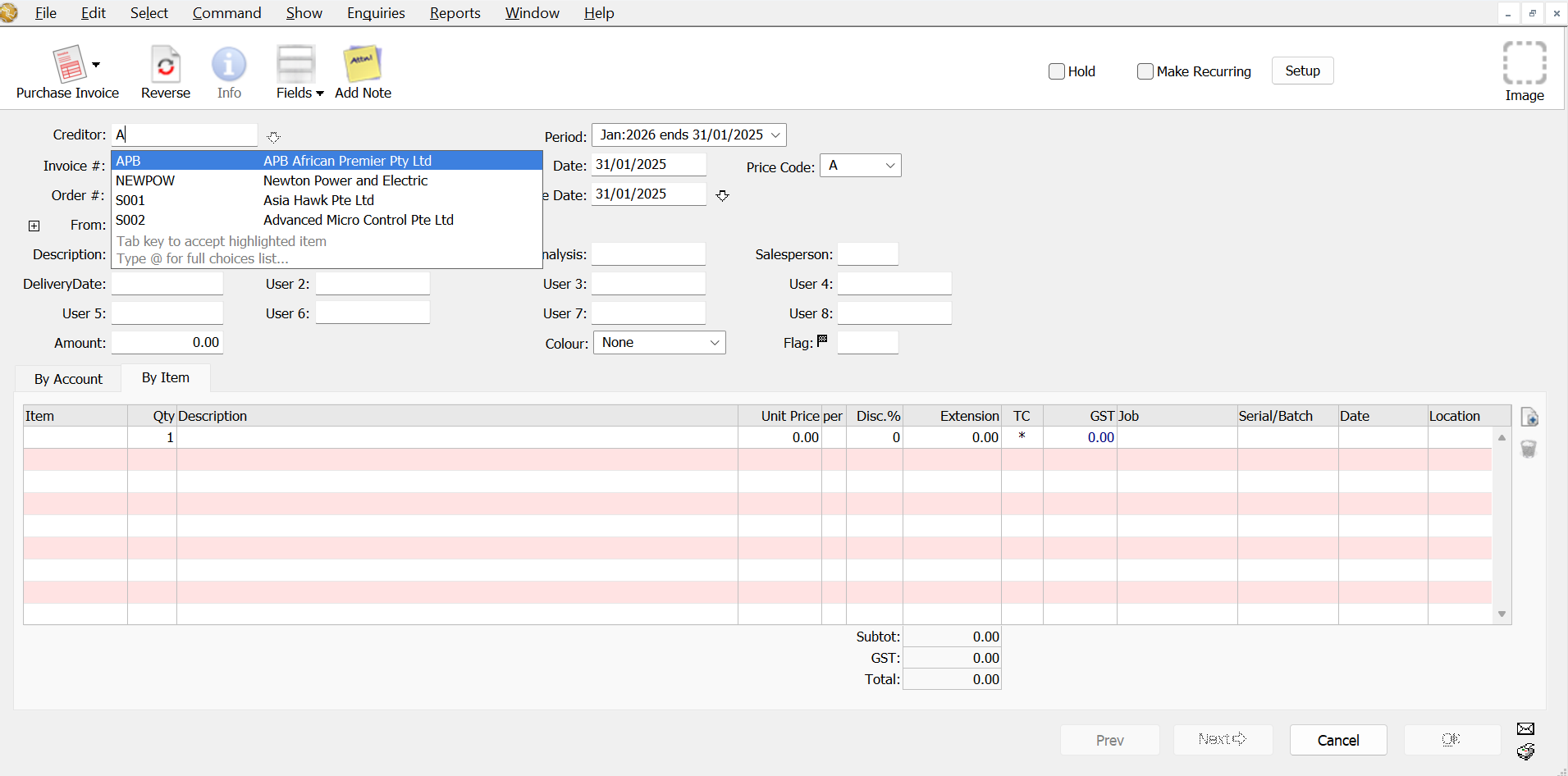
In MoneyWorks, suppliers are also called Creditors.
- Locate the Creditor field.
- Enter the supplier code.
- Press Tab.
- Confirm that the correct supplier details appear.
If you cannot remember the supplier code, enter the first few characters and press Tab. MoneyWorks will display matching supplier records.
What if the supplier is new?
You can create a supplier record while entering the invoice. Enter a new supplier code and press Tab. When the selection window appears, click New to create the supplier record.
Step 3: Enter the Supplier Invoice Details
Complete the information shown on the supplier’s invoice.
| Field | Description |
|---|---|
| Invoice # | Invoice number provided by the supplier |
| Date | Supplier invoice date |
| Order # | Your company’s purchase order number, if applicable |
| Due Date | Date the invoice is due for payment |
| Description | Description of the purchase |
| Amount | Total amount payable, including applicable GST |
MoneyWorks normally calculates the due date using the payment terms recorded for the supplier. You can change the due date when necessary.
Example
Suppose your company receives an invoice with these details:
- Supplier: ABC Office Supplies Pte Ltd
- Invoice Number: ABC-INV-1025
- Invoice Date: 15 October 2026
- Payment Terms: 30 days
- Description: Office equipment and supplies
- Invoice Total: S$545.00
Enter these details into the Purchase Invoice window.
Important: The Invoice # field should contain the supplier’s actual invoice number. This helps identify the transaction when processing payment and checking for duplicate invoices.
Avoid entering duplicate supplier invoices
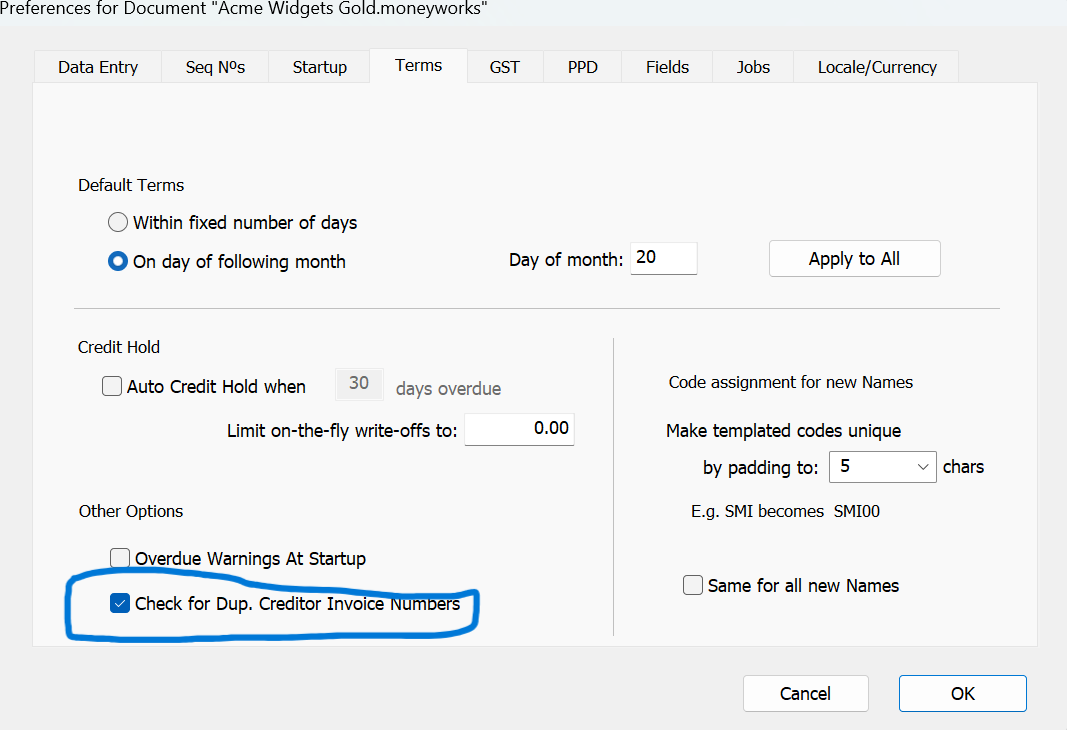
MoneyWorks can warn users if the same invoice number has already been entered for that supplier. This requires the Check for Dup. Creditor Invoice Numbers setting to be enabled in Document Preferences.
The duplicate warning appears when you attempt to accept the invoice.
Step 4: Enter Expenses or Purchased Items
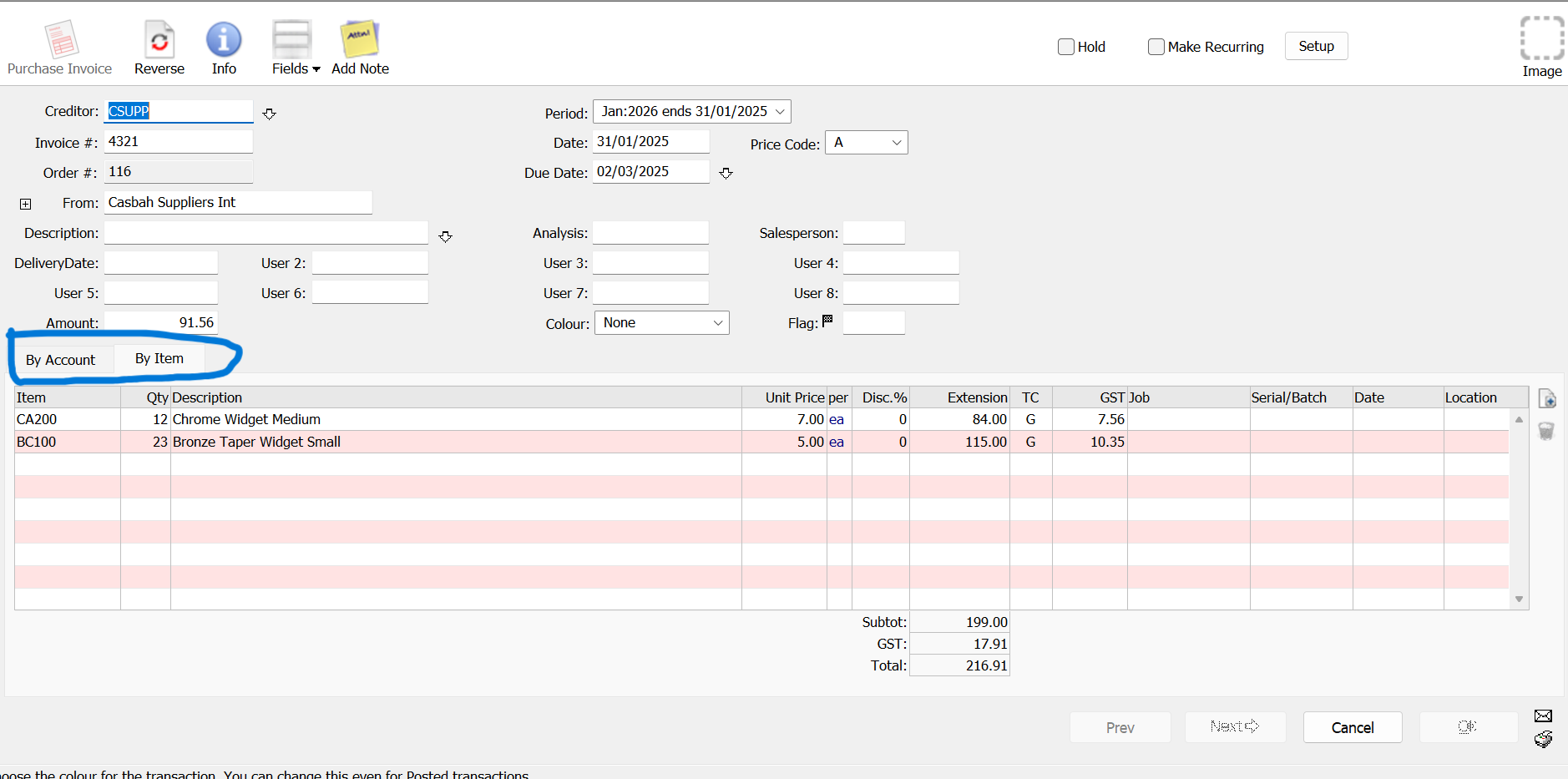
After entering the invoice header, allocate the invoice amount to the appropriate expense, asset or inventory accounts. MoneyWorks supports two main methods.
Option A: By Account
Use By Account when recording general business expenses directly against the Chart of Accounts. Examples include:
- Office rental
- Utilities
- Telephone and internet expenses
- Professional fees
- Office maintenance
- Software subscriptions
- Advertising expenses
To enter an expense:
- Select By Account.
- Enter the relevant general ledger account code.
- Enter the description.
- Enter the amount.
- Check the GST tax code.
- Add additional lines if the invoice contains more than one expense category.
For example, an invoice containing printing and stationery expenses can be allocated to different accounts.
Option B: By Item
Use By Item when the purchase relates to products or services already configured in the MoneyWorks item list.
To enter an item:
- Select By Item.
- Enter the item code.
- Enter the quantity purchased.
- Check the description.
- Verify the unit purchase price.
- Check the tax code.
- Repeat for additional items.
Tip: If you are purchasing inventory items, check the item code, quantity and cost carefully. Incorrect entries may affect inventory values and stock records.
Step 5: Check the GST and Invoice Total
Before saving, verify that the amounts entered in MoneyWorks match the supplier’s original invoice.
Example: Office Supplies Purchase
| Description | Amount |
|---|---|
| Office supplies | S$400.00 |
| Delivery charges | S$100.00 |
| Subtotal | S$500.00 |
| GST (9%) | S$45.00 |
| Invoice total | S$545.00 |
This example assumes the supplier is GST-registered and both charges are subject to Singapore’s standard GST rate of 9%.
When entering the invoice:
- Select the appropriate expense or asset account.
- Enter the amounts.
- Check the tax codes.
- Confirm that MoneyWorks calculates the expected GST.
- Verify that the total matches S$545.00.
If the supplier invoice is not subject to standard-rated GST, use the appropriate tax treatment.
Important: Do not automatically apply 9% GST to every supplier invoice. Check the supplier’s GST registration, the nature of the transaction and whether input GST is claimable.
Step 6: Save and Post the Purchase Invoice
Before saving, review:
- Supplier name
- Invoice number
- Invoice date
- Due date
- Account or item allocation
- Description
- GST
- Total amount
MoneyWorks allows you to save a purchase invoice as an unposted or posted transaction.
Save without posting
Leave the posting option disabled and click OK. The invoice is saved for further review but does not yet update Accounts Payable.
Save and post
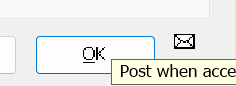
- Enable the Post option using the envelope icon.
- Check the transaction details.
- Click OK to accept the invoice.
If you have more purchase invoices to enter, click Next to save the current transaction and open another Purchase Invoice window.
Important: An unposted purchase invoice will not appear in the Payables list and cannot be processed through the normal supplier invoice payment workflow.
Step 7: Verify the Purchase Invoice
After saving and posting the invoice:
- Return to the Transactions list.
- Locate the purchase invoice.
- Check its posted status.
- Confirm the supplier and invoice amount.
- Open the Payables view to check the outstanding invoice.
The invoice will remain outstanding until it is paid, credited or otherwise settled.
Accounting Effect of a Purchase Invoice
When a standard business expense is recorded with fully claimable input GST, the accounting entry is generally:
| Account | Debit | Credit |
|---|---|---|
| Office expenses | S$500.00 | |
| Input GST | S$45.00 | |
| Accounts Payable | S$545.00 |
The purchase invoice records the expense, applicable input GST and the amount owed to the supplier. If the purchase involves inventory or fixed assets, different accounts may be used.
Step 8: How to Put a Purchase Invoice on Hold
Sometimes a supplier invoice needs further clarification before it can be processed. For example:
- Incorrect invoice amount
- Quantity discrepancies
- Goods not received
- Wrong pricing
- Missing supporting documents
- Disputed delivery charges
MoneyWorks provides a Hold option. To place an unposted purchase invoice on hold:
- Open the purchase invoice.
- Select the Hold checkbox.
- Save the invoice.
MoneyWorks will prevent the invoice from being posted while it remains on hold. Once the issue has been resolved, remove the Hold and post the invoice.
A posted invoice can also be placed on hold to prevent it from appearing in the normal list of invoices eligible for payment.

What If You Already Created a Purchase Order?
If your business uses MoneyWorks Purchase Orders, you should normally process the supplier invoice through the existing purchase order rather than entering a separate invoice. The purchase-order process helps you compare:
- Ordered quantities
- Received quantities
- Purchase prices
- Supplier invoice details
When the purchase order is processed, MoneyWorks can create the corresponding purchase invoice automatically. This also helps maintain accurate inventory records.
Important: Avoid manually entering another purchase invoice if one has already been generated through purchase-order processing. Doing so could result in duplicate purchases or supplier liabilities.
Common Problems and Solutions
The supplier does not appear
Check that the supplier exists in MoneyWorks and that you have entered the correct creditor code.
MoneyWorks warns about a duplicate invoice
Check the supplier’s invoice number and search the existing transactions before proceeding.
The invoice total does not match
Review quantities, prices, allocated amounts, discounts and GST calculations.
The invoice cannot be posted
Check whether the invoice is on Hold, whether all required details have been entered and whether your user privileges allow posting.
The GST amount is incorrect
Confirm the selected tax codes and compare the calculated GST with the supplier’s original invoice.
The invoice does not appear in Payables
Check that the invoice has been posted and remains outstanding.
The invoice was entered against the wrong supplier
If the invoice is still unposted, correct the supplier information before posting. If already posted, follow the appropriate MoneyWorks correction or cancellation procedure.
Frequently Asked Questions
What is a Purchase Invoice in MoneyWorks?
A Purchase Invoice records an amount your business owes a supplier for goods or services purchased on credit.
Can I save a purchase invoice without posting it?
Yes. An invoice can be saved as an unposted transaction and posted after review.
Can MoneyWorks detect duplicate supplier invoices?
Yes. MoneyWorks can warn about duplicate invoice numbers from the same supplier when the duplicate-checking preference is enabled.
Can I enter purchases using item codes?
Yes. Use the By Item option to enter products or services configured in the MoneyWorks item list.
Can I change the payment due date?
Yes. The due date is normally calculated from the supplier’s payment terms but can be changed when necessary.
Can I put a supplier invoice on hold?
Yes. The Hold function allows you to prevent posting or normal payment processing while an issue is being resolved.
How do I record payment for a purchase invoice?
Once the purchase invoice is posted, use the supplier payment process to allocate a payment against the outstanding invoice.
Need Help with MoneyWorks?
Ostendo provides MoneyWorks accounting software consultation, implementation, training, customisation and ongoing support for businesses in Singapore.
We can help you:
- Set up customer and supplier accounts
- Configure purchase and sales transactions
- Set up GST tax codes
- Improve Accounts Payable workflows
- Implement purchase orders and inventory controls
- Customise invoices and financial reports
- Train your accounts team
Learn more about MoneyWorks Accounting Software.