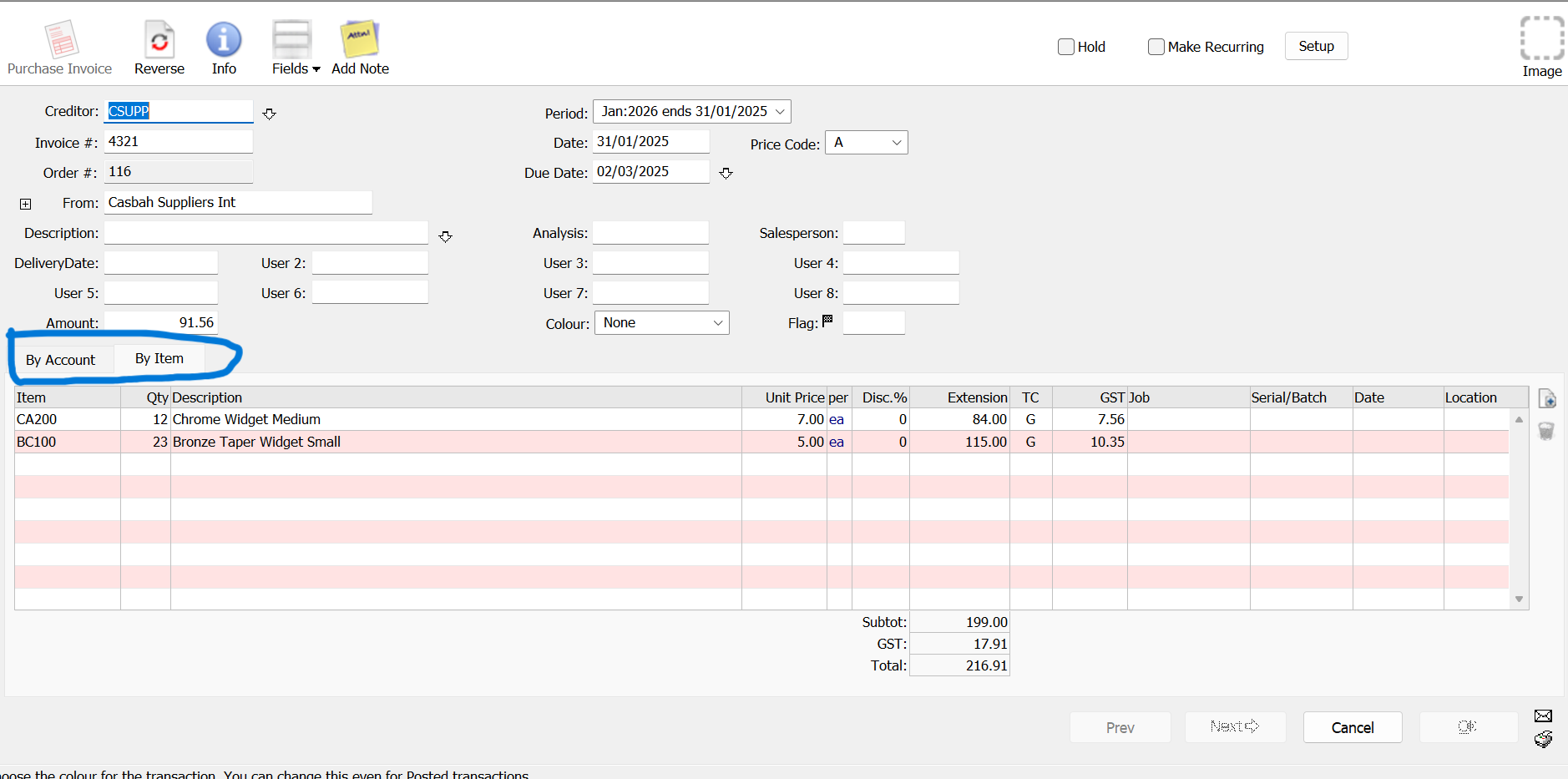
After entering and posting a purchase invoice in MoneyWorks, the next step is to record the payment when your business pays the supplier.
Whether you pay by bank transfer, cheque or another payment method, it is important to allocate the payment correctly so that your Accounts Payable records remain accurate.
MoneyWorks allows you to record supplier payments against outstanding purchase invoices. You can pay an invoice in full, make a partial payment or settle several invoices with one payment.
This step-by-step tutorial explains how to record supplier payments in MoneyWorks and verify that the outstanding supplier balances are updated correctly.
Watch the Video: Paying Suppliers Electronically in MoneyWorks
Prefer to watch? This video shows how to pay suppliers electronically in MoneyWorks. The written steps below cover recording and allocating supplier payments in detail.
What You Will Learn
By the end of this tutorial, you will know how to:
- Open the supplier payment entry screen
- Select the supplier
- Enter the payment amount and bank account
- Allocate payment to an outstanding purchase invoice
- Record a partial supplier payment
- Pay multiple invoices with one payment
- Verify that the supplier balance has been updated
- Understand the Batch Creditor Payments function
Before You Start
Make sure that:
- The supplier has been created in MoneyWorks.
- The supplier’s purchase invoice has been entered and posted.
- The correct bank account has been configured.
- You have the necessary privileges to enter supplier payments.
- The payment details and supporting documents are available.
If you have not entered the supplier invoice, refer to our previous tutorial, How to Create a Purchase Invoice in MoneyWorks.
Important: This tutorial covers payment of existing purchase invoices. If you are recording an immediate purchase that has not been entered as an invoice, the procedure is different.
Step 1: Open the Supplier Payment Screen
There are two ways to create a supplier payment in MoneyWorks.
Method 1: Create a new Payment transaction
- Open the relevant MoneyWorks company file.
- Open the Transactions window.
- Press Ctrl + N on Windows or Command + N on macOS.
- Set the transaction type to Payment, if it is not already selected.
The Payment transaction window will appear.
Method 2: Pay an existing purchase invoice
If you know which invoice you want to pay:
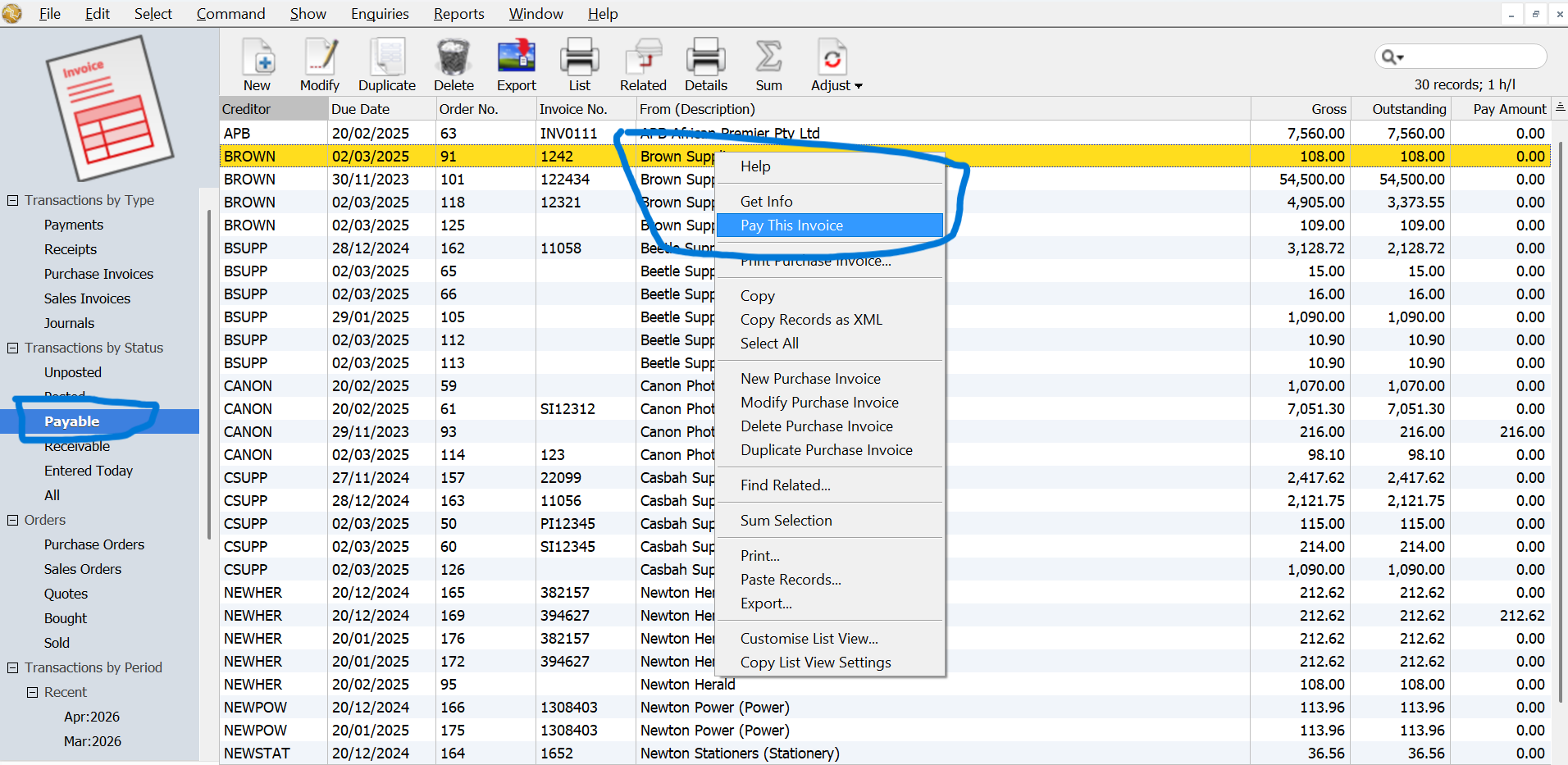
- Open the Payables list.
- Locate the outstanding supplier invoice.
- Right-click the invoice.
- Select Pay this Invoice.
MoneyWorks opens the payment transaction for the selected invoice.
Step 2: Select the Supplier
In the Payment transaction window:
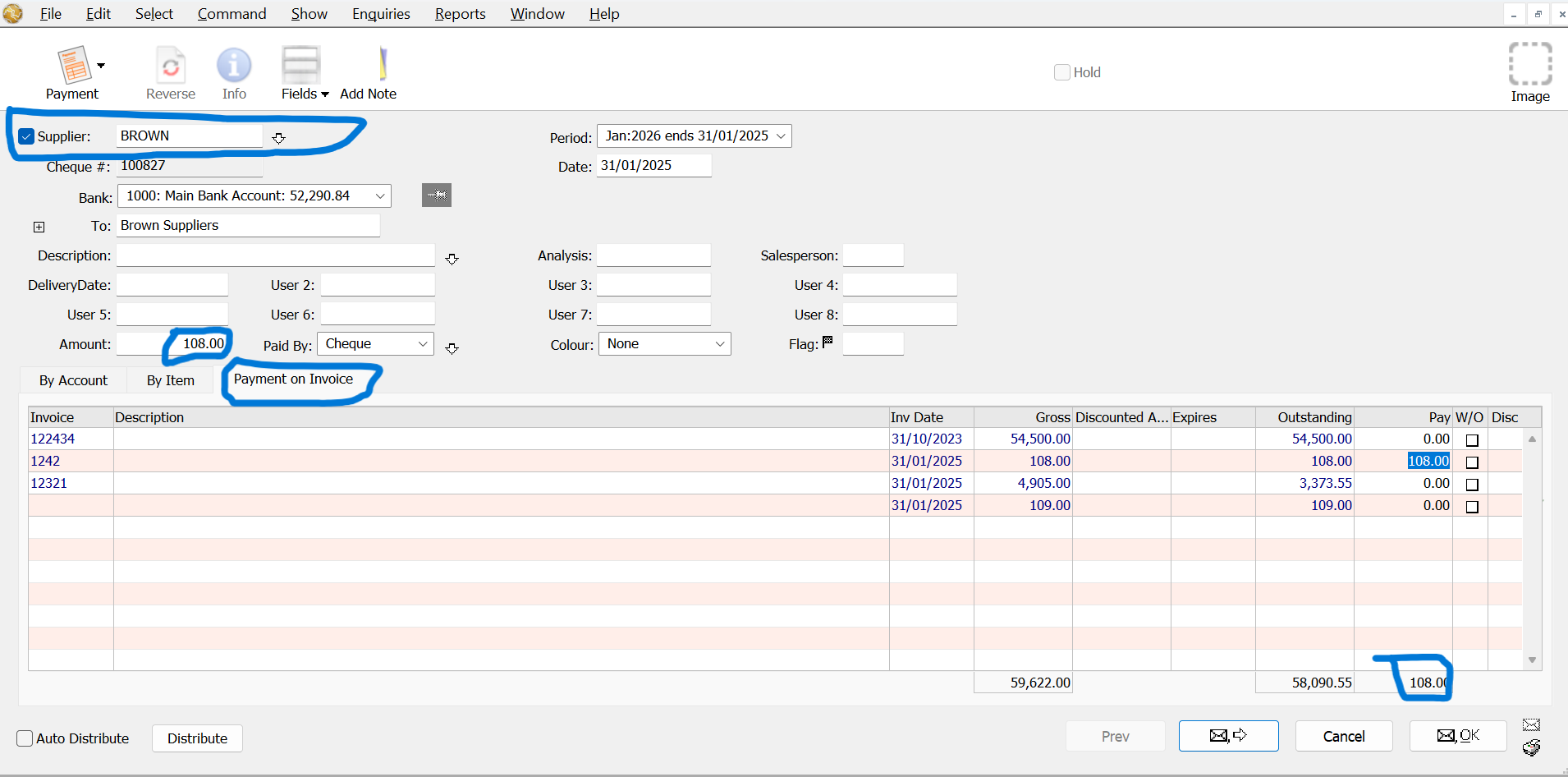
- Select the Supplier checkbox.
- Enter the supplier code.
- Press Tab.
- Confirm the correct supplier has been selected.
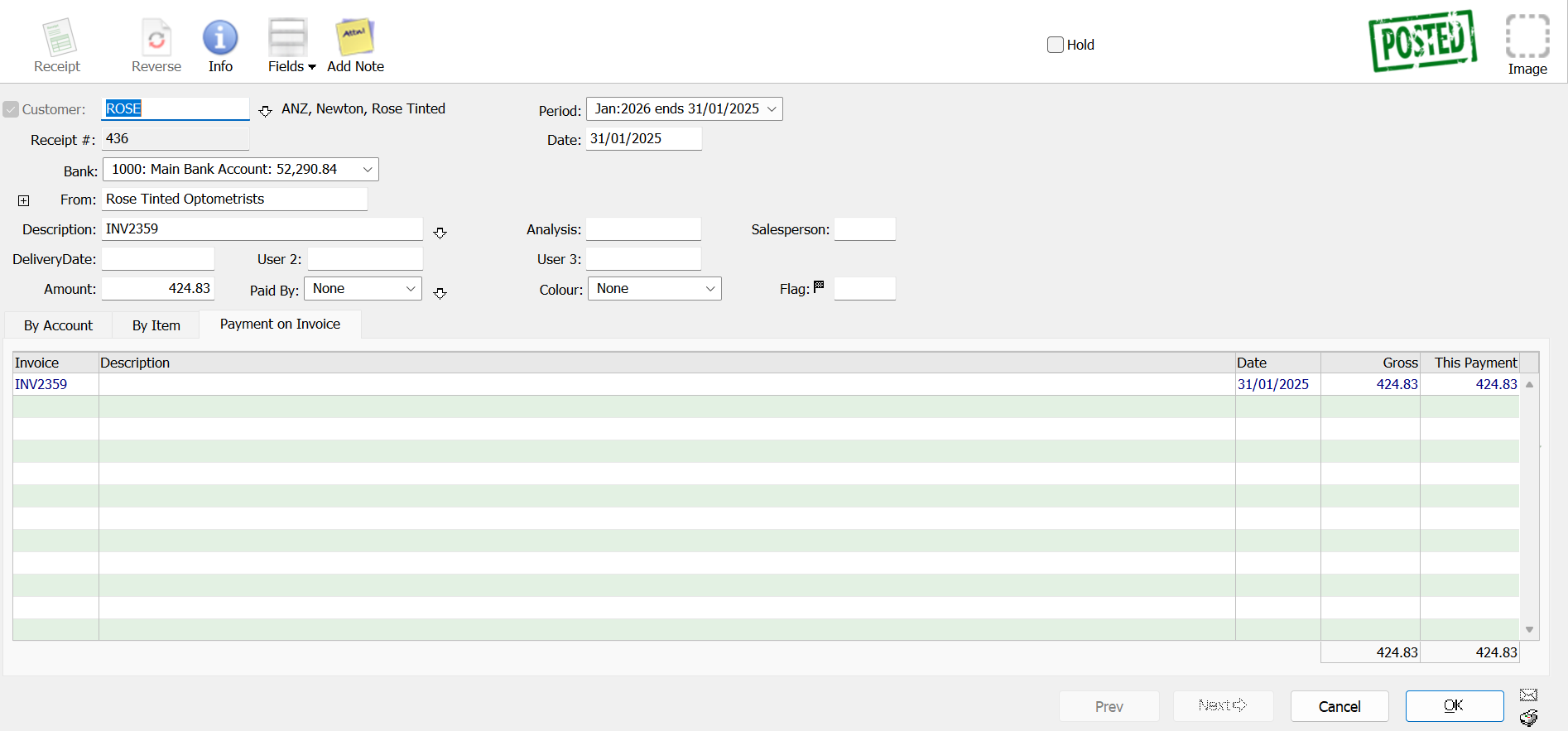
MoneyWorks will display the supplier’s outstanding invoices under the Payment on Invoice tab.
Only eligible outstanding invoices are displayed. Invoices that have been placed on Hold will not appear in the normal payment allocation list.
Tip: Always use the correct supplier code. This ensures that the payment reduces the outstanding balance of the intended supplier.
Step 3: Enter the Payment Details
Enter the relevant information in the Payment window.
| Field | Description |
|---|---|
| Payment Date | Date the payment is made or recorded |
| Bank Account | Bank account from which the payment is made |
| Amount | Total amount being paid |
| Paid By | Payment method |
| Description | Payment reference or explanation |
| Period | Accounting period for the transaction |
Check the bank account and payment date carefully. If the payment is made by bank transfer, ensure that the transaction is recorded against the appropriate bank account.
If the Description field is left blank, MoneyWorks can automatically insert the invoice numbers being paid when the transaction is saved.
Step 4: Allocate the Payment to an Outstanding Invoice
After selecting the supplier, MoneyWorks displays the outstanding invoices in the Payment on Invoice tab. For example:
| Purchase Invoice | Outstanding Amount |
|---|---|
| PI-1001 | S$500.00 |
| PI-1002 | S$300.00 |
| Total Outstanding | S$800.00 |
Suppose your company is paying S$500.00 for invoice PI-1001. Follow these steps:
- Enter S$500.00 in the Payment Amount field.
- Locate invoice PI-1001.
- Click the amount shown in the Outstanding column to transfer it to the Pay column.
- Alternatively, manually enter S$500.00 in the Pay column.
- Confirm that the total allocated amount matches S$500.00.
This tells MoneyWorks which purchase invoice is being settled.
Important: Do not allocate payment for an existing purchase invoice directly to a general ledger expense account. The expense or purchase was already recorded when the original purchase invoice was posted.
Step 5: Save and Post the Supplier Payment
Before accepting the transaction, verify:
- Supplier name
- Payment date
- Bank account
- Total payment amount
- Invoice number
- Amount allocated to each invoice
Once the information is correct:
- Click OK to accept the payment.
- Alternatively, click Next if you need to enter another payment.
MoneyWorks automatically posts payments against purchase invoices. Unlike some other transaction types, the posting option cannot be disabled when paying an existing purchase invoice.
After posting, the payment updates the relevant bank account and reduces the amount owed to the supplier.
Step 6: How to Record a Partial Supplier Payment
Sometimes your company may pay only part of a supplier invoice. For example:
| Description | Amount |
|---|---|
| Original Purchase Invoice | S$1,000.00 |
| Payment Made | S$400.00 |
| Remaining Balance | S$600.00 |
To record the partial payment:
- Open a new Payment transaction.
- Select the supplier.
- Enter S$400.00 as the payment amount.
- Locate the outstanding invoice.
- Enter S$400.00 in the Pay column.
- Confirm the payment details.
- Click OK.
MoneyWorks records the partial payment and leaves S$600.00 outstanding. When the remaining balance is paid later, create another payment and allocate it to the same invoice.
Tip: Do not select the Write-Off (W/O) option simply because the supplier has received a partial payment. A partial payment should normally leave the remaining invoice balance outstanding.
Step 7: How to Pay Multiple Invoices with One Payment
A supplier may issue several invoices during the month, and your company may settle them together. For example:
| Purchase Invoice | Amount to Pay |
|---|---|
| PI-1001 | S$500.00 |
| PI-1002 | S$300.00 |
| PI-1003 | S$200.00 |
| Total Payment | S$1,000.00 |
To record a combined payment:
- Create a new Payment transaction.
- Select the supplier.
- Enter S$1,000.00 in the Amount field.
- Locate the three outstanding invoices.
- Enter the relevant amount in the Pay column for each invoice.
- Confirm that the total allocation equals S$1,000.00.
- Click OK.
MoneyWorks records one payment against the three selected purchase invoices.
Using the Distribute Button
MoneyWorks also provides a Distribute function. When you enter the total payment amount and click Distribute, MoneyWorks allocates the amount across outstanding invoices starting from the top of the displayed list. You can sort the invoice list before distributing the payment.
Important: Always review the allocated invoices before accepting the transaction. The automatic distribution order may not match the supplier’s remittance instructions.
Step 8: Verify the Supplier Payment
After recording the payment:
- Open the Payables view in the Transactions list.
- Locate the relevant supplier invoice.
- Confirm that the outstanding balance has been reduced.
- If the invoice was fully paid, it should no longer appear as outstanding in the normal Payables view.
You can also review the relationship between invoices and payments through Enquiries → Payments History. Use the supplier code or invoice number to locate the relevant transactions.
Accounting Effect of a Supplier Payment
When you pay an existing supplier invoice, the normal accounting entry is:
| Account | Debit | Credit |
|---|---|---|
| Accounts Payable | S$500.00 | |
| Bank Account | S$500.00 |
The payment reduces Accounts Payable and the bank balance. The original expense or purchase amount is not recorded again because it was already recognised when the purchase invoice was posted.
Common Problems and Solutions
The supplier’s invoice does not appear
Check that the purchase invoice has been posted, remains outstanding and is not on Hold.
The payment cannot be allocated
Confirm that the correct supplier has been selected and that you are using the Payment on Invoice tab.
The payment amount does not match the allocated invoices
Review the amounts in the Pay column and ensure that the total allocation equals the Payment Amount.
The supplier was paid less than the invoice amount
Enter the actual payment amount. MoneyWorks retains the outstanding balance for future payment.
The wrong invoice was selected
Correct the allocation before accepting the payment. If the transaction has already been posted, investigate the appropriate correction procedure rather than creating a duplicate payment.
The payment was recorded against the wrong bank account
Check the bank account before accepting the transaction. For a posted payment, use the appropriate MoneyWorks correction procedure.
The supplier invoice still appears as outstanding
Check whether the payment was allocated to that invoice and whether any balance remains unpaid.
Frequently Asked Questions
Can I record a partial supplier payment in MoneyWorks?
Yes. Enter the amount being paid against the outstanding purchase invoice. MoneyWorks retains the unpaid balance.
Can I pay several supplier invoices with one payment?
Yes. One Payment transaction can be allocated across multiple outstanding invoices belonging to the same supplier.
Does MoneyWorks automatically update Accounts Payable?
Yes. When a payment is accepted against an outstanding purchase invoice, MoneyWorks automatically posts the payment and reduces the relevant Accounts Payable balance.
Can I save a supplier invoice payment without posting it?
No. MoneyWorks automatically posts payments against purchase invoices when the transaction is accepted.
Can MoneyWorks generate electronic supplier payments?
Yes. Batch Creditor Payments can prepare electronic payment files for supported banking systems, provided the necessary supplier bank details and payment settings have been configured. Watch our video How to Pay Suppliers Electronically to see how it works.
Can I view which invoices were paid by a supplier payment?
Yes. Use Enquiries → Payments History to review invoices and their associated payments.
What happens if a supplier invoice is on Hold?
Invoices on Hold are excluded from the normal payment selection list until the Hold is removed.
Need Help with MoneyWorks Accounting?
Ostendo provides MoneyWorks accounting software consultation, implementation, training, customisation and ongoing technical support for Singapore businesses.
We can help you:
- Set up supplier accounts and payment terms
- Improve Accounts Payable procedures
- Configure Batch Creditor Payments
- Set up bank statement imports
- Improve bank reconciliation workflows
- Customise financial reports
- Train your accounts team to use MoneyWorks effectively
Learn more about MoneyWorks Accounting Software.