
How to Backup Moneyworks Data – Manual and Auto Backup
Data loss is one of the biggest risks for any business. Whether it’s due to system failure, human error, or cyber incidents, losing your accounting data can disrupt operations and impact decision-making.
A proper backup process ensures your MoneyWorks data is always protected and recoverable.
In this article, we’ll walk you through:
- How to manually back up your MoneyWorks Data
- How to set up automatic backups using MoneyWorks Datacentre
- Common backup mistakes to avoid
- A recommended backup strategy
1. How to manually back up your MoneyWorks Data
Manual backups are the simplest way to create a safe copy of your accounting data whenever needed.
- Open the Moneyworks Document
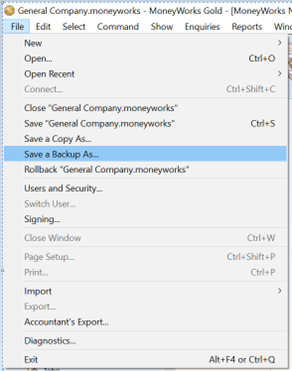
- Click on “File” Menu, then Click on “Save a Backup As”
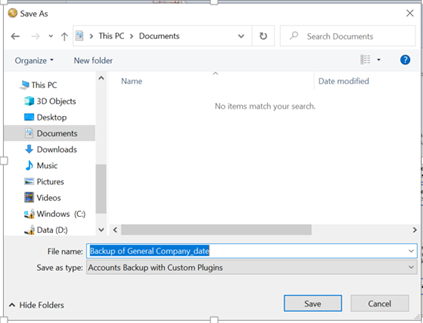
- Enter the File name: Example “Backup of General Company” and click “Save”.
Include your custom reports and forms
You can also back up your Custom Plug-ins folder:
On Mac: select Accounts Backup with Custom Plug-ins under Format
On Windows: choose it under Save as type
This will create a full backup copy of your MoneyWorks data file.
Best practices for manual backup:
- Perform backups daily or weekly, depending on transaction volume
- Use different storage devices (do not overwrite the same file repeatedly)
- Keep at least one backup off-site (e.g. cloud storage or external drive)
- Retain multiple versions so you can restore older data if needed
2. How to set up automatic backups using MoneyWorks Datacentre
For better consistency and reduced manual effort, you can enable automatic backups using MoneyWorks Datacentre.
Key benefits of auto backup:
- Runs automatically in the background
- Reduces human error
- Ensures consistent backup scheduling
- Open MoneyWorks Datacentre Admin
- Go to Preferences / Backup Settings
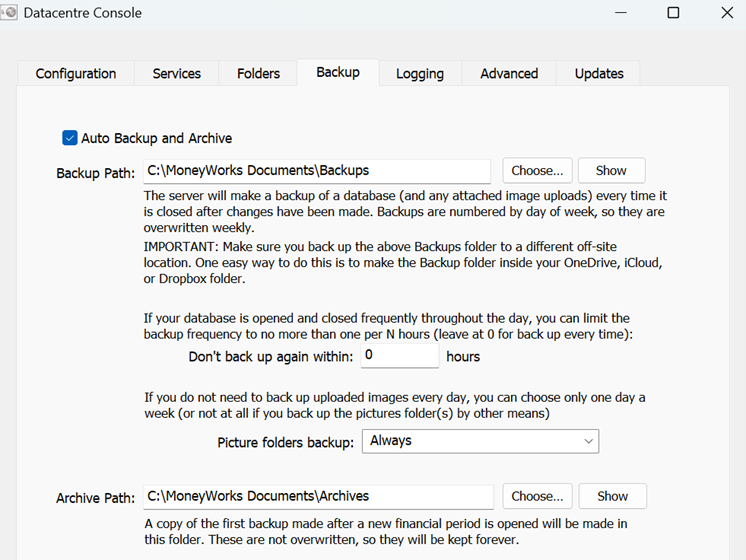
- Enable Automatic Backups.
When checked, documents will get automatically backed up whenever they close.
If a new period has been opened, then the backup also goes into the Archives folder and is dated so that it will not get overwritten. Otherwise backups go into the backups folder and are stamped with the day of week (1-7). Week-old backups will therefore get overwritten.
If you open several periods in advance, you won’t get archives for those periods. Don’t open periods in advance.
By default, the Backups and Archive folders reside in the same location as the documents. This makes it easy to locate backups if you need to go back to an old version of a database for some reason however it offers no protection against storage device failure or server theft or destruction. You must set up some mechanism to back up data on another device, and in another location.
You can change the Backup and Archive paths to point to a location on another device, preferably on another computer or cloud storage.
3. Common Mistakes to Avoid
Many businesses think they are protected—but fall into these traps:
❌ Backing up to the same device as the original data
❌ Keeping only one backup copy
❌ Never testing backup recovery
❌ Relying purely on manual backups
4. A recommended backup strategy
We recommend that you take frequent backups, and always ensure that a recent backup is held off-site. Depending on the volume of transactions, you might want to take a backup every day, or at the end of every week. In either situation, you should have several backup disks that you rotate—you should never be backing up onto the same disk as you used last time.
When the backup disk fills up, you should delete the oldest backup on it. You can tell at a glance which is the oldest because MoneyWorks has helpfully dated the backup for you
To truly protect your MoneyWorks data, follow the proven 3-2-1 backup strategy:
3 copies of your data (1 primary + 2 backups)
2 different storage types (e.g. server + external drive)
1 off-site backup (e.g. cloud or remote location)
Final Thoughts
Protecting your MoneyWorks data goes beyond routine IT work—it’s an essential part of safeguarding your business.
By putting in place:
- Regular manual backups (Save a Backup As)
- Automated backups using MoneyWorks Datacentre
- A disciplined 3-2-1 backup strategy
You can greatly minimise the risk of data loss and keep your operations running smoothly, even when unexpected issues arise. To further strengthen your backup strategy, you can consider subscribing to a cloud backup solution like Acronis.
Key benefits:
- Off-site protection – Your backups are stored securely in the cloud, protecting against physical damage or theft
- Ransomware protection – Built-in security helps detect and block malicious attacks
- Automated backups – Set and forget, reducing reliance on manual processes
- Fast recovery – Quickly restore your data in case of failure
- Centralised management – Monitor and manage backups across multiple devices
By integrating a cloud backup solution like Acronis into your 3-2-1 strategy, you add an extra layer of protection—ensuring your business data is always secure, accessible, and recoverable when needed.
